My Third Game Design Blog Post – Flipping the objects.
|
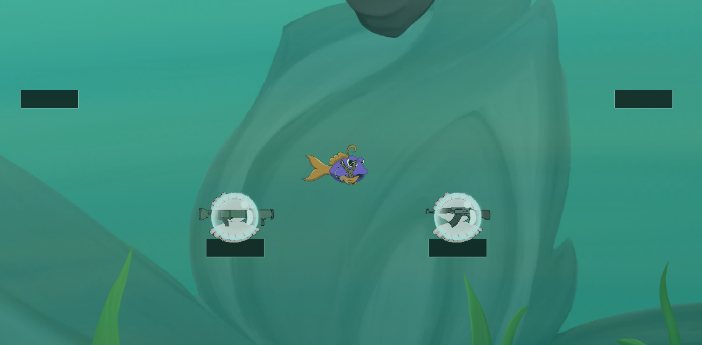
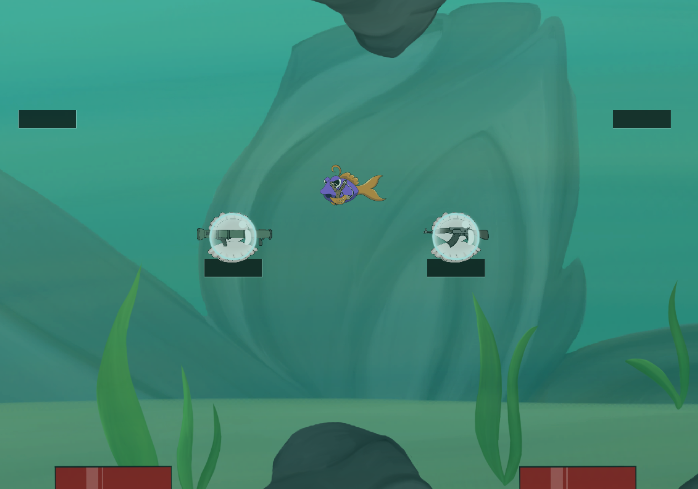
Hello again, on this Thursday I will write about different ways to flip characters in the engine as well as flipping of other non-character objects. Flipping that I am talking about right now is making the sprite(picture) of the chosen game object rotate itself to face other direction. Like on those two pictures below.
(The Player is facing right, not flipped.)
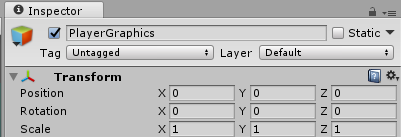
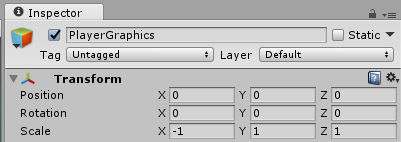
(The Player is facing left, flipped.) Flipping itself can be done on any sprite in the Unity engine, in our game we flip game objects like characters, weapons and fins of our fishes. The flipping itself can be done in plenty of ways like using scale method where when character is supposed to flip the scale on the sprite in the inspector is changed to 1 or -1 on the X axis.
(Scale is 1 on X so the character is facing left.)
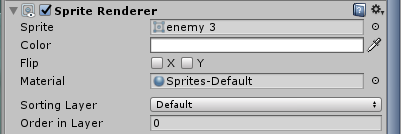
(Scale is -1 on X so the character is facing right.) Basically, this method works like this, if character or an object move left or right in some way, for example through using A and D if that’s your controllers then it transforms the scale X to the different one. As an example, let’s say that we have code that if you press button A then scale on X axis will be 1, else if you pressed button D then scale X will transform to -1 and face right. I used this method of flipping in the beginning of the project but I prefer an easier method. I used this different method because its simpler and easier to understand as well as quite new so I wanted to tested it out. I used this one on the enemy’s, so that when they fallow the player and player swims under or above them to the other side of the screen, the enemy’s check if the player is on negative X axis or positive and adjust their flipping to the player’s position. The way I flip them is even easier, basically unity has this thing called Flip in inspector when you select a sprite in the engine.
(Flip, checked boxes allow flipping of the sprite the opposite way of how it got implemented in the engine.) You call the Sprite Renderer or just the Renderer and make a function that checks if the enemy is on the negative side of X axis or on positive and then checks the Flip X box in the inspector or unchecks it. Depending on what direction is your sprite already facing. It’s simple and easy. You enable or disable the box on Flip X, you can also use same method to flip the object on the Y axis.
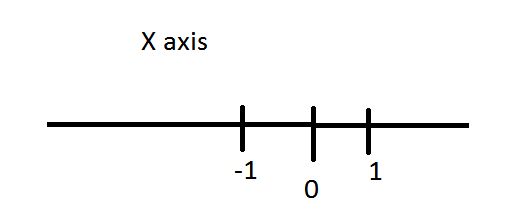
(X axis)  |