Programming: SDL2 Native Functions
|
We’re using SDL 2 library to create our first games. This library allows low level access to audio, keyboard, mouse, joystick, and graphics hardware via OpenGL and Direct3D. In our first working game, Arkanoid, we used about 20 SDL2’s functions. I’m going to describe them in this post. SDL_Init() and SDL_Quit()
The two functions initialize and quit the SDL system, respectively. You have to initialize SDL to be able to make use of functions provided by the SDL or to quit it to deallocate resources. In addition, SDL_Init() takes a parameter which specifies what to initialize (e.g., The Init function has to be the very first one you use in your SDL scripts whereas the Quit function has to be the last one. SDL_CreateWindow()
Pretty obvious – this function creates an empty window. The parameters are as follows:
A window created in this way will flash on your screen and immediately disappear. That’s because there are no other functions/statements that would cause it to display any other behaviour. SDL_Delay()
This function “pauses” the SDL system, making it wait for If you use it, e.g., after creating a window, you can have your window up for the given amount of time but you won’t be able to interact with it because the SDL is paused. SDL_GetError() and SDL_Log()
If internal SDL errors occured, this function returns a string for the last SDL error. You can use it in conjunction with print statements to track what happened in the SDL system. The SDL_Log() function prints out the string specified as the parameter to console. You can use this function in conjunction with SDL_GetError() to print out SDL errors. SDL_CreateRenderer()
This function creates a rendering context for a window. A rendering context is the port through which OpenGL commands pass.
SDL-specific object types SDL defines several specific object types that are used in various SDL functions and beyond.
Routine for displaying simple content in a window Now that you have a window and a renderer, you can display some content in the window. The easiest thing is to draw a simple shape (e.g., a rectangle) using SDL’s own functions. The next simplest thing is load a ready-made image into the window. The idea when loading an image into a window is as follows. First you load the image from an external file using the Brief description of each function follows.
The
The
The first two parameters are self-explanatory: the renderer and the texture you’re using. The source rect refers to the rectangular area in the original texture you want to clip out and use for rendering (
Here comes something special for computer graphics. When you draw or display objects, they don’t immediately appear on the screen. Instead, they are added to the “backbuffer”, an abstract storage area (a frame, if you will) that accumulates all objects. Once you’re done drawing the scene, you issue this command to update the window tied to the renderer by bringing out the backbuffer. The functions described above are sufficient to load, say, a single sprite from a sprite sheet and display it in a window. Below is a minimal working example:
#include "SDL.h"

int main(int argc, char* argv[])
{
	SDL_Init(SDL_INIT_EVERYTHING);
	SDL_Window* window = SDL_CreateWindow("Sprite",SDL_WINDOWPOS_UNDEFINED,SDL_WINDOWPOS_UNDEFINED,320,640,SDL_WINDOW_OPENGL);
	SDL_Renderer* renderer = SDL_CreateRenderer(window, -1, SDL_WINDOW_OPENGL);
	SDL_Surface* image = SDL_LoadBMP("sprites.bmp");//the sprite sheet must be placed in the same folder as project working directory (normally the folder that contains the *.vcxproj file)
	SDL_Texture* texture = SDL_CreateTextureFromSurface(renderer, image);
	SDL_Rect clip = {208,4,140,194};
	SDL_RenderCopy(renderer, texture, &clip,nullptr);
	SDL_RenderPresent(renderer);
	SDL_Delay(3000);
	//deallocate resources
	SDL_DestroyTexture(texture);
	SDL_FreeSurface(image);
	SDL_DestroyRenderer(renderer);
	SDL_DestroyWindow(window);
	window = nullptr;
	renderer = nullptr;
	image = nullptr;
	texture = nullptr;
	SDL_Quit();
	return 0;
}
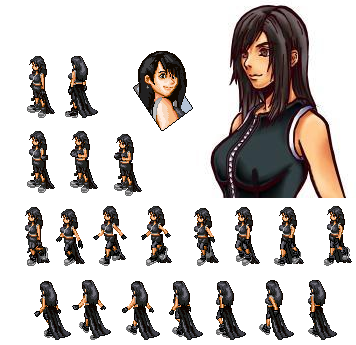
So that using this free sprite sheet (go to the sprite sheet):
I get the following かわいい result:
The code snippet above includes clean-up functions which are mandatory: you need to deallocate resources to free memory so that no memory leaks occur. This includes both setting pointers to
Note that you have to include the SDL.h file to be able to use SDL in your code (line 1). Another thing is that default project properties have to be modified so that Visual Studio can find the necessary SDL’s *.h and *.dll files. This is easy and there are many tutorials that teach how to prepare your Visual Studio system to work with SDL. One last nuisance that I discovered the hard way is that SDL requires the In our live coding sessions of Arkanoid, we used these SDL native functions (and a few others, not mentioned here – mainly user input stuff); we wrapped these functions with C++ classes which defined the entire logic of the game. The movement of the ball, collisions, creation of blocks etc. was all handled by normal C++ functions and only the user input and re-drawing of the frames was done using the SDL functions.  |