Using Audio in Unity
|
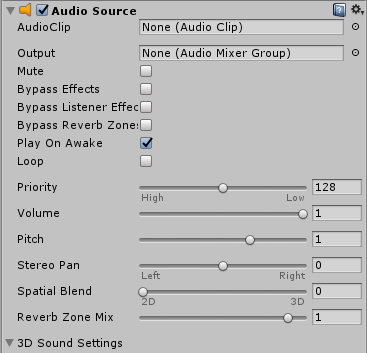
I am the Lead Sound in my game design group, so I have done research on how to use Unity’s audio system, both through the editor and through code. I found it a bit tricky at first, so I’m hoping that this post might clear some things up and help someone else understand. For my fellow students: if you find this helpful, make sure to show it to your own group’s Lead Sound! And if your team has any sound issues, write to me and maybe I can help you First of all. To be able to hear sound in your game, you need to have an “AudioListener” component attached to an active GameObject. Unity will automatically attach listeners to “Camera” objects, so you project most likely already has one. The component responsible for actually playing sound is called “AudioSource”. AudioSources can be attached to any GameObject, but unlike listeners, you may have as many sources as you want. So you can attach an AudioSource to objects that you want to manage their own audio. AudioSources look like this:
AudioClip is a sound/music file. Output. Volume is the volume for this specific AudioSource, not the master volume for the whole game. Pitch – get to know this one, for you own sanity’s sake. These are the most important ones when you are dealing with 2D perspective games where sound doesn’t need a specific “location” in the world. In 3D games, most sound effects need to come from a location and the volume needs to be relative to the distance to the player (the “ears” of the game). But even if your game is in 2D, if your game is an exploration game there’s one cool thing you can do to make the sound expand your world and help give the player feedback on where enemies/ETC. are located.
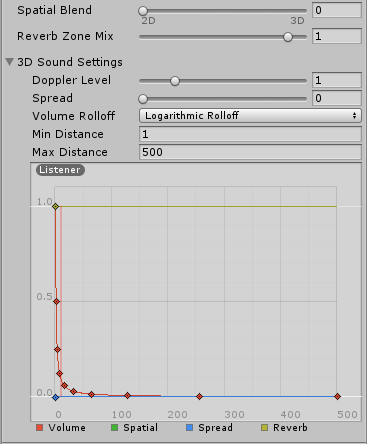
If you expand “3D Sound Settings”, you will get access to Min and Max Distance. These are radiuses around the AudioSource that shows you how close the AudioListener has to be to the source to hear the sound. The default Max of 500 is very big, so zoom out in the scene to see it. There are two things you MUST do to be able to use the Distance settings.
One thing to keep in mind is that if you disable an AudioSource that is currently playing audio, or disable/destroy the parent GameObject it’s attached to, the audio will stop. To get around this, you can have a GameObject called, for instance, “SoundManager”, attach an AudioSource to it, and play sound through it via code. Or even instantiate an AudioSource prefab! Code examples: Instantiating an AudioSource prefab, using it and destroying it: Changing pitch, for example when playing shoot sounds:  |

 Read about all the settings