|
Even though we are creating a game about bees, wasps and beetles, I only want bugs to appear on screen and not in my code. Unfortunately, fixing bugs is a major part of your work as a programmer and can get extremely frustrating when you can not seem to find out what is wrong.
Especially after the last playtesting session there were a lot of things that needed to be fixed. For some reason, our main character or his companions occasionally decided to leave the screen, the pause menu did not work, dead things still managed to kill you, bees were hiding behind each other, random pieces of air killed you during the boss fight, the Game Over Screen popped up when you were not actually dead and the Win Screen refused to show up at all.
 |
| Me seeing my stupid code not working |
As there was a huge amount of things to fix up, I tried to figure out the best way to debugging in Unity and figured out that there is a lot of approaches that might work depending on the situation.
1. The Console
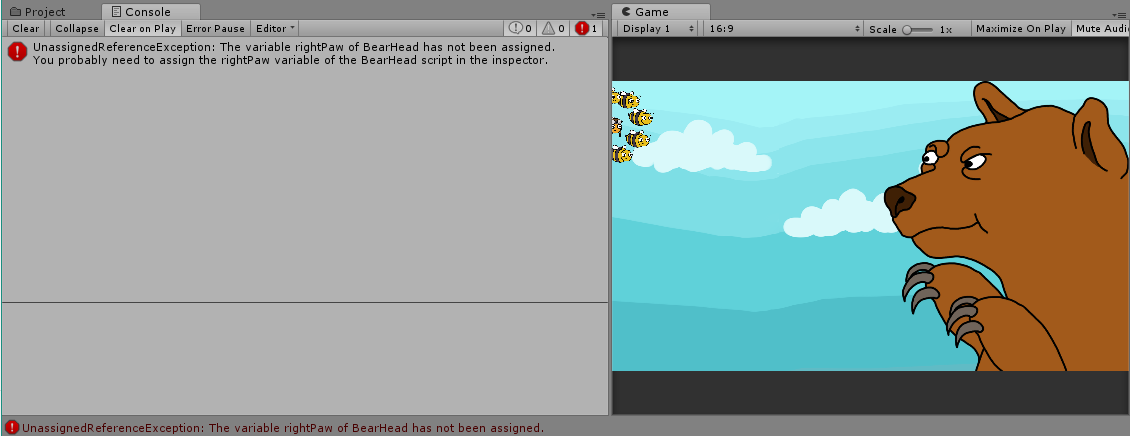
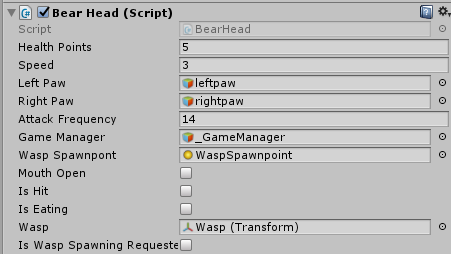
Sometimes (but only sometimes) it is as easy as that. Press pause while playing when you got to the console and take a look into the consoleto check for any exceptions or warnings that might give you a hint at what is wrong. In the example above my bear refused to move his right paw, so you might think that something is wrong with the paw script, but is actually the bear itself that does not have a right paw assigned to it in the inspector.
2. Using Debug.Log(“”)
Most of the time the Conole unfortunately does not tell me exactly what I have been doing wrong so I try to get ome help from Debug.Log(“”). This lovely line of code gives out a text to the console whenever it is called. This means inside my not-working function that should call the win screen, I can output a line of text to the Console to check, if the function even gets called at all. This way I can eventually narrow down, in which line of code I messed up and get rid of that annoying bug. Instead of outputting custom text, I can also give out the value of a variable of my choice. For example when fixing the bee counter in my game, I could just give out the variable beeCount from my GameManager and check if the number is equivalent to the bees on the game screen.
3. Making variables public
While testing your game, you can actually see how the values of each game object in the inspector change. This means you can make variables public and check if they get the right value assigned while playing or pressing pause.
4. Using Visual Studio’s break points
Yes, you can actually use break points even when using Unity. (You need to have Unity Development Tools installed in Visual Studio, though). After setting your break points, you can just click “Attach to Unity” where it usually says “Run” and then run the game in your editor. Now you can use break points and go through your code line by line, just like you would do with any other Visual Studio project.
Sleeping /Taking a walk etc.
Debugging can be a pain in the buttccheek and sometimes the best thing to do is just to take a little rest and get your head free from any coding or debugging or why the stupid bees still decide to leave the game screen even though you tried to fix it a million times and it is making me very angry. So just take a walk, have a nap, eat some lentil soup, watch a movie or meet friends. Sometimes it works wonders and when you get back to your project that the solution to the problem is much easier than you thought.
About Jan Plähn
2017 Programming
|