2018.03.01 – Maximizing your Audio budget using pitch variation
Why do we need sound?In order to help the player enter into the magic circle, we need to consider all aspects of the game feel such as movement, visual cues, and audio feedback. Today we will be tackling the last one. Audio helps us conveying information to the player by engaging another sense besides visual and tactile (e.g. rumble). Relaying feedback via audio, allows us to:
What is our budget?One “issue” – if we can call it that – for the production was our audio budget. Of course this doesn’t refer to money, rather I use this terms to describe the only resource we have at our disposal, namely TIME! Finding or creating sounds, fine-tuning them to fit our overall aesthetic and finally implementing them took more time than originally anticipated (1~2h per audio feedback). The most time consuming part of this process is the creation/finding of an appropriate sound. We have therefore looked into ways to cut down on the amount of sounds we need for each type of feedback we wanted, while at the same providing enough diversity for the player not to get sick of them. Impossible you may say but do not despair, the solution is right around the corner! Pitch-variation to the rescue! The quickest way to vary a sound in audio production is to use pitch-variation. The pitch of a sound is “a perceptual property of sounds that allows their ordering on a frequency-related scale, or more commonly, pitch is the quality that makes it possible to judge sounds as “higher” and “lower” in the sense associated with musical melodies.” (Plack, et al., 2005, Pitch: Neural Coding and Perception). We can thus use the same sound and create the feeling of having a multitude of different samples by slightly altering the pitch of the original sound clip.
Changing the pitch value in the inspector however would fix it during run-time. Fortunately we can access this component via script too. In order to create an virtually limitless amount of variation, we simply use a Random.Range function to set the pitch every time an audio clip is set to play. This will allow us to keep the clip similarly enough for the player to recognize the feedback, and vary it in such a way that the same sound is never being played twice in a row. _audioSource.pitch = Random.Range(0.5f, 1.5f); _audioSource.loop = false; _audioSource.Play() The code above was my first attempt to create this run-time behavior. However, we quickly noticed that a 1.0f range was too large and resulted in TOO much variety. After investigating the matter a bit more, we came to the conclusion that the industry standard was a 0.1f pitch variation on either side of the original sound – i.e. from 0.9f to 1.1f . TL;DR:When it comes to audio, I would recommend spending most of your time on finding/creating the right sound. Once you have it, learn and love random capped pitch variation. This will lead to an immerse audio feedback loop that provides enough variety for your player to feel as if there was an infinite amount of variation.  |
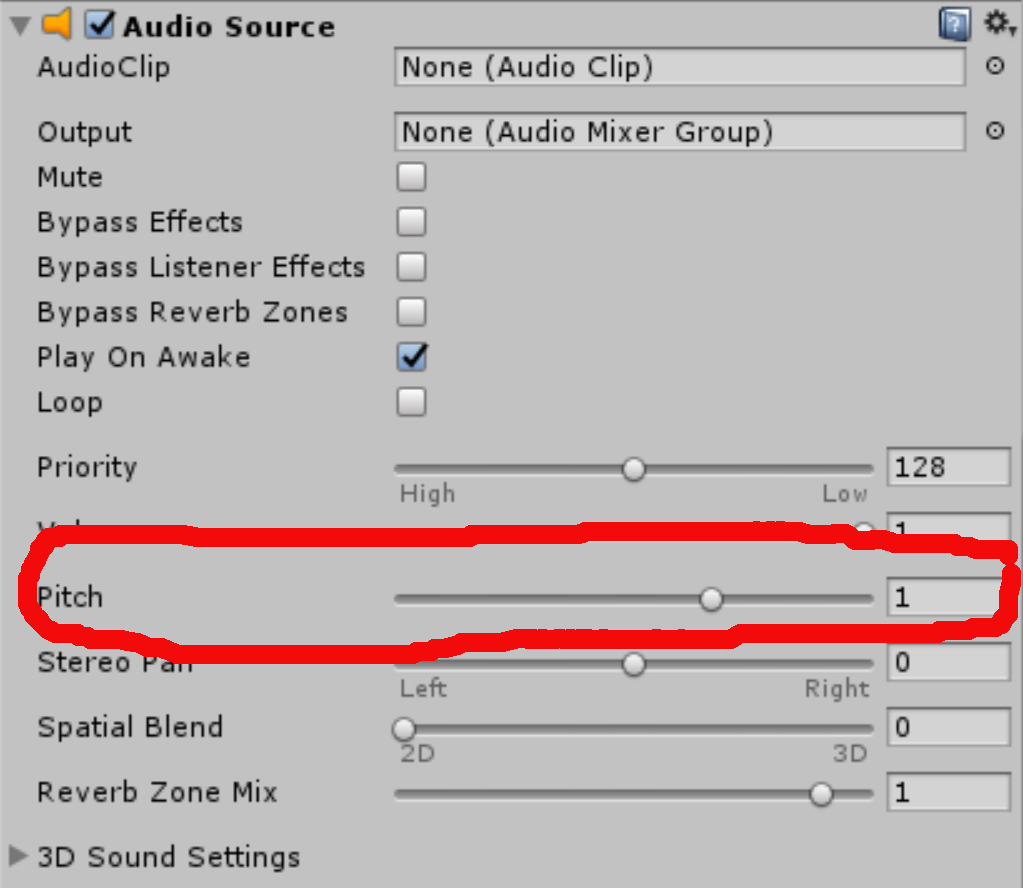 The pitch of an