Game Dev: Implementing graphics and animating characters
|
This week, I started implementing the graphics of Mole Munch. After all, a game about different colored squares gets old in the long run (sorry, Thomas was alone!). This process was not too painful, and I was mostly done after a sunday and monday’s worth of work. Sadly my body decided to shut down on me monday evening and I lost two days being sick. Today I am back on track, but have mostly been squaching bugs, implementing small features, and merging code with my other programmers. As a result of this, I only really have the graphical implementation to talk about. So, let’s talk about implementing graphics! Okay, so how does graphics in 2D games work? Keep in mind that this is only how I incorporated graphics, definitely not the definite way. Spritesheets and textures First of all, I finished a topdown walk animation from last week for the main character so that I had something player-related to implement.
And then I put the lil’ thing into a spritesheet
Creating a texture So far so good. What I then do programming-wise, is to load this spritesheet into the project as a texture. I am not clear on what the proper definition of a texture is, but in this case it will eventually hold all of the mole frames as they get done by our faithful graphical artists. Keeping more stuff in the same texture is important for optimization, as it is easier to load one big texture rather then dragging in several smaller ones. Next, I need a sprite. Our sprite’s job is to take the correct part of the texture, and show that part to the player. Note that sprites do not show complete textures, only squares of it as big as the sprite. In a way, you can think of the sprite as a window showing the texture through the thick mist of zeros and ones that data consists of. 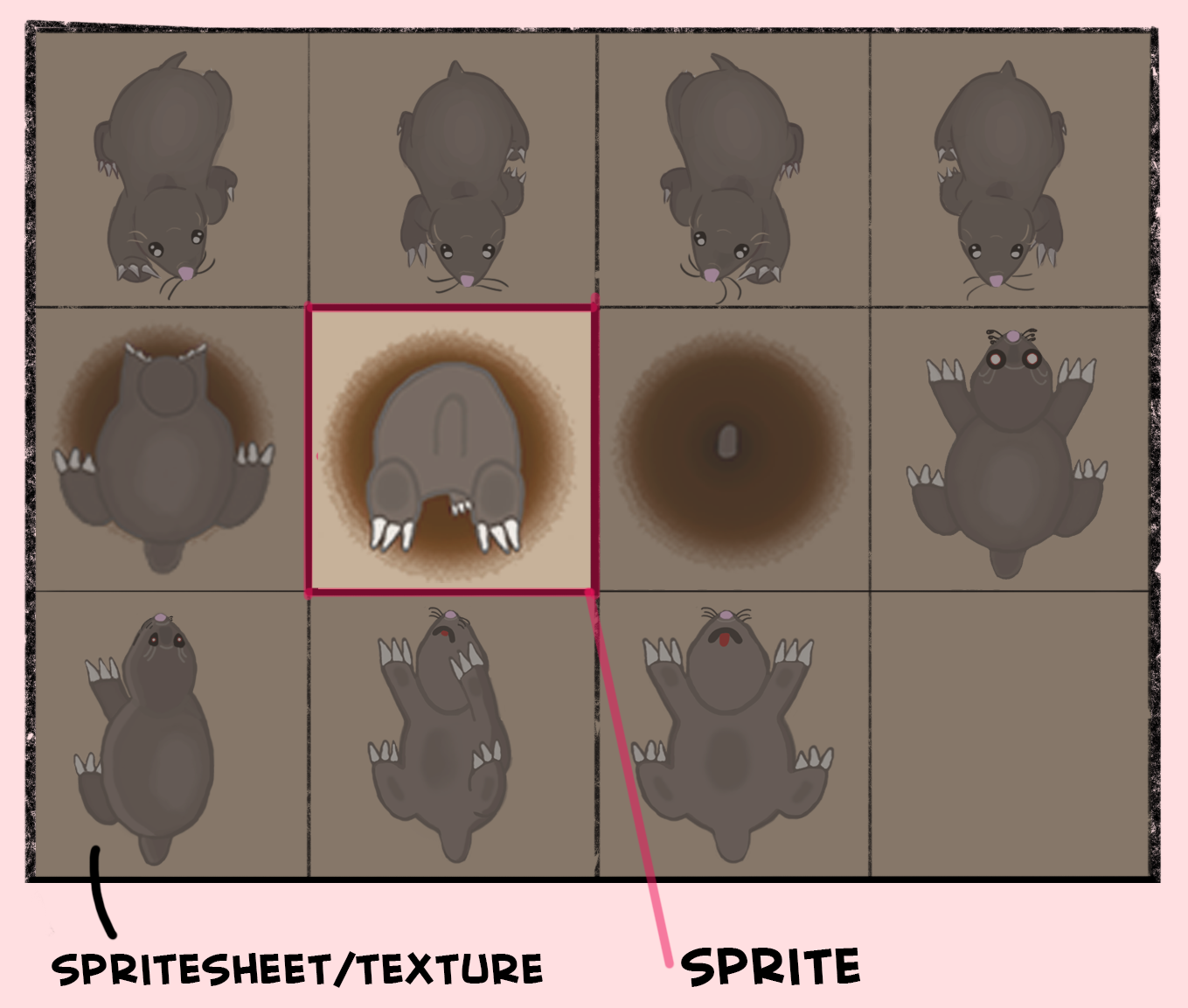
Does this make any sense? So, how do you tell the sprite what part of the texture to show? A lot of rectangles What I did was to create an std vector of the IntRect type. In english, this means that I created a bunch of squares and then put them into a list. When creating the player, I go through this list of rectangles and change the position and size of each of these rectangles so that each one contains a frame in the mole spritesheet/texture. For example, the first rectangle had the position 0x,0y and size 50x,88y, while the second had the same size except that the X position has now moved 50 pixels (the width of the mole) in order to get to the next frame in the spritesheet. By storing a bunch of rectangles corresponding to each frame, I have the way of showing the sprite what part of the texture to show. In order to animate the character, all I need to do is to tell the sprite to switch its texture rectangle for the next one, making it read another part of the image. And that is how sprites and spritesheets and and animation works, at least the way I learned it going into this assignment. My solution is fairly hard coded though, each animation behaviour requiring unique coding and care. Next time I will make sure to conduct more research and planning before diving into the rocky land of hard code. Here is picture of how the game looks with all of the current graphics implemented. We already have a new updated wave of graphics coming in soon, based on the feedback given on this version. Isn’t that productive of us! 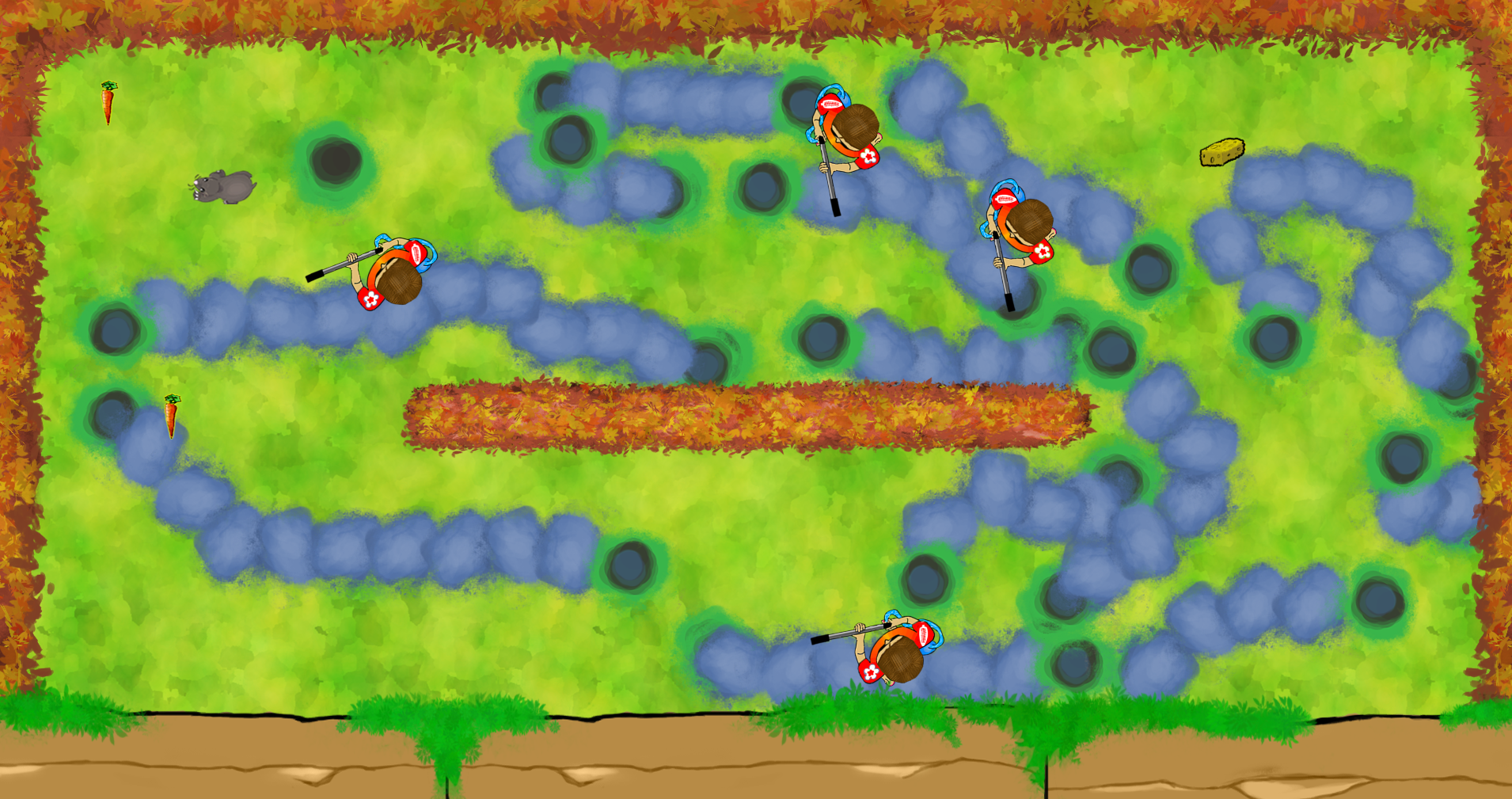
I know this is a lot of graphics to take in, calm down! I hope this post helped clear up some confusion for anyone wondering how a spritesheet can turn into an animated character. Until next week!  |

