The Main Menu
|
Hidey-ho folks! I’m back again for the second week of the blog assignment.This week I chose to talk about the Main Menu. It’s actually something I did quite early in the project, but I was using placeholders until this week. The graphics are still not final but at the very least they represent our game much better. What?The Main Menu is the intro screen to the game, the first thing you see essentially. Here you can check the controls of the game as well as adjust the volume of both the music and sound effects. You can also quit the game as well as, naturally, start it. How?Unity makes creating menus very easy. It has an inbuilt “Button” element that has everything a button needs. For instance you can assign a sprite (image) to the button, as well as a line of text that will be displayed on top of said sprite. Buttons also have different states; the normal state, the “hover” state, a “pressed” state and a “disabled” state. The normal one is just what the button looks like normally, while the “hover” state is what it looks like when you hover your mouse pointer over it. “Pressed” is what it looks like when you press it and “disabled” is what it looks like if the game doesn’t allow you to press that button at the moment. You also have to decide what the button actually DOES when pressed, which is done through code. You basically write a script with one or more functions that execute certain commands, then attach that script to the button and choose which function to use. For instance switching to sub menu simply loads that menu while simultaneously unloading the current menu. For the Audio menu I use sliders to change the in game volume. This works very similarly to the Healthbar I wrote about last week, with one small difference. There is also a particle system in place, but I haven’t really worked on that much yet. For now it’s just a very basic particle that I recolored to make it look more like cherry blossoms. You can barely make it out in the picture as those small dots here and there. When the game is running they float across the screen. Why?Every game needs some sort of main menu, or intro screen, where you can adjust the settings before starting the game. I did decide to implement it quite early on however, which I admit may have been a bit of a misstep. I could have worked on something more important early on, and leave this for later. Still I am quite happy with how it looks at the moment. Next week I’ll be playing around with the particle system more to see if I can improve it, so see you then!  |
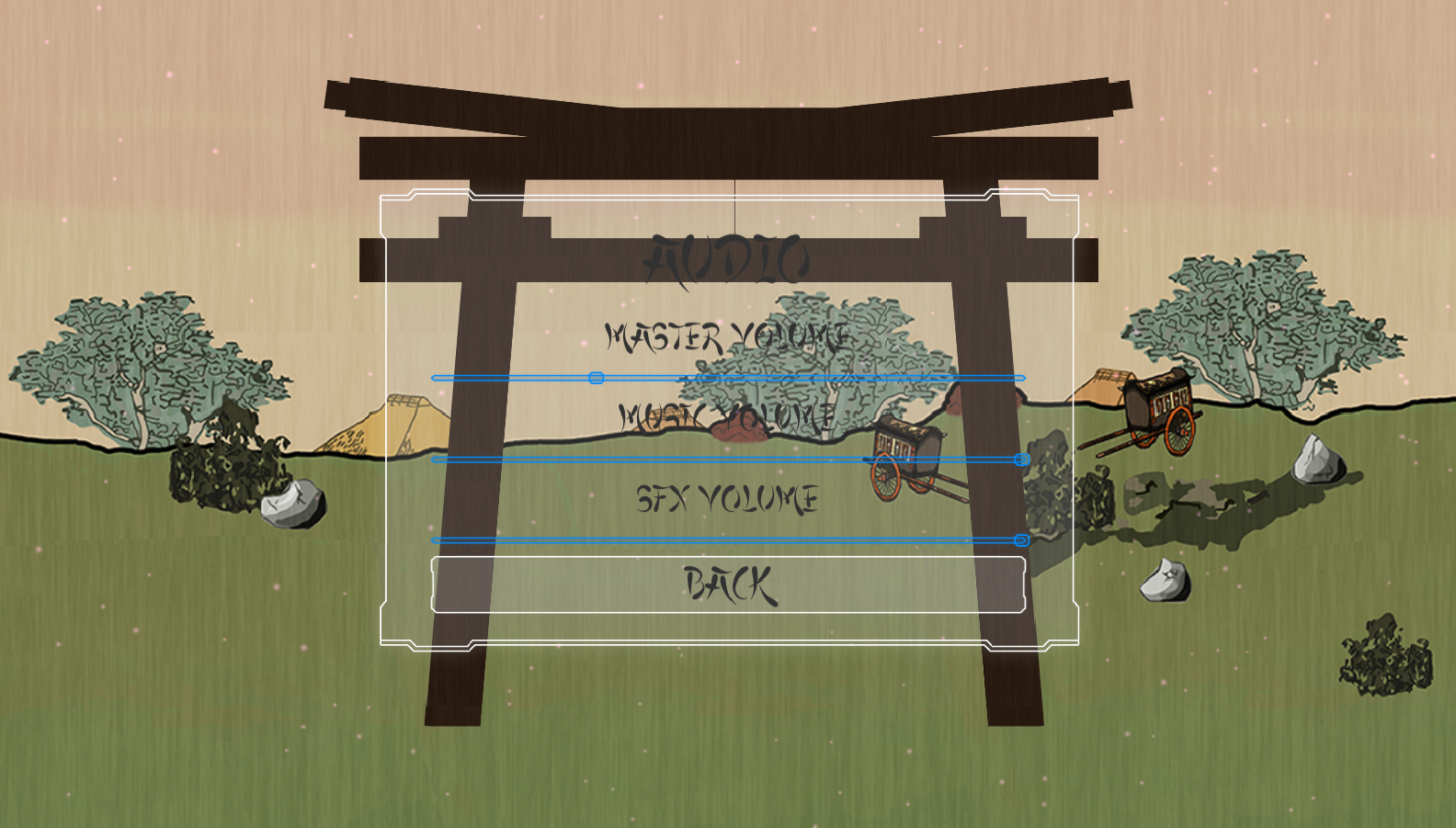 With the Healthbar I made it so that you cannot change its value manually, because that would be cheating, whereas with the audio sliders you CAN change their values manually. In fact there is no other way to change them.You change their values by clicking and dragging the small handles you can see on the picture above. The code behind them is pretty much exactly the same as with the Healthbar though. The sliders value is tied to the volume, meaning that when either one changes the other changes as well.