Week 3 – Making a splash screen
|
This week I’ve been working on a splash screen for our game called Selfish. We had received feedback for our game that it was hard to tell why the main character fish was shooting the other fish in the tank. So, our designer came up with the idea that we could have a splash screen with a sign that briefly tells the story. A splash screen is usually a screen at the start of a game that tells you what company made the game. But we decided to write a short backstory there instead.
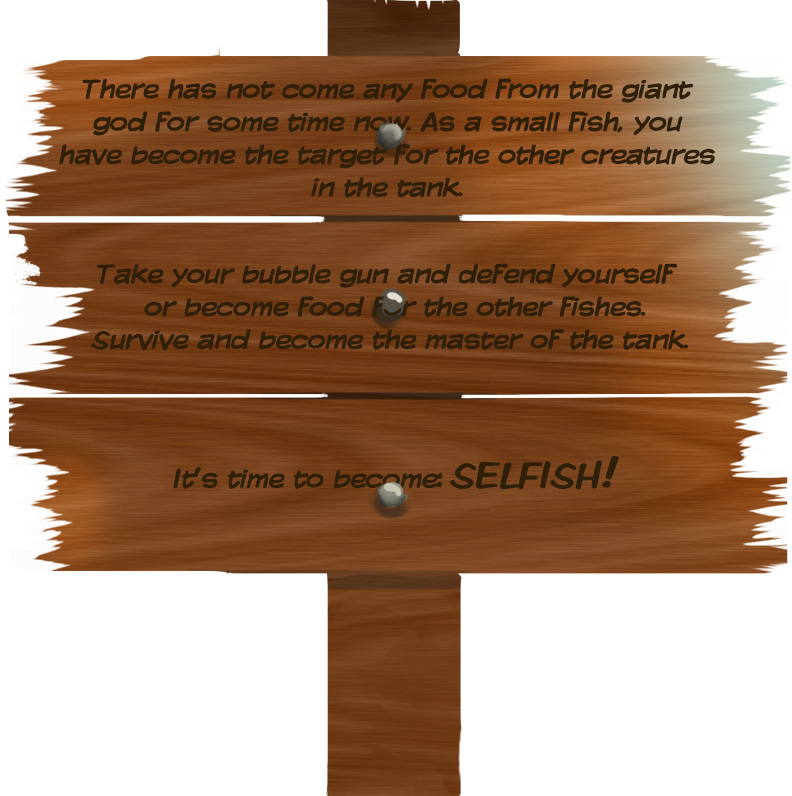
Since the game takes place in an aquarium we thought that it would be fitting that the text should be written on a wooden sign that is sometimes placed in fish tanks. The sign was made in Photoshop. First I made the outline of the sign. Then I made the wood texture in Photoshop as well using a few different filters. Lastly, I drew some quick nails on it. When I drew the sign there was not yet a text to put on it. So in retrospect, it would have been better to design the sign after I had the text to make it fit better. I’m also not very satisfied with the look of the texture. Our visual goal is something more cartoonish and the sign came out looking a bit too realistic. I also don’t like the blue light effect I put on the top right. If I have time, I will remake it later.
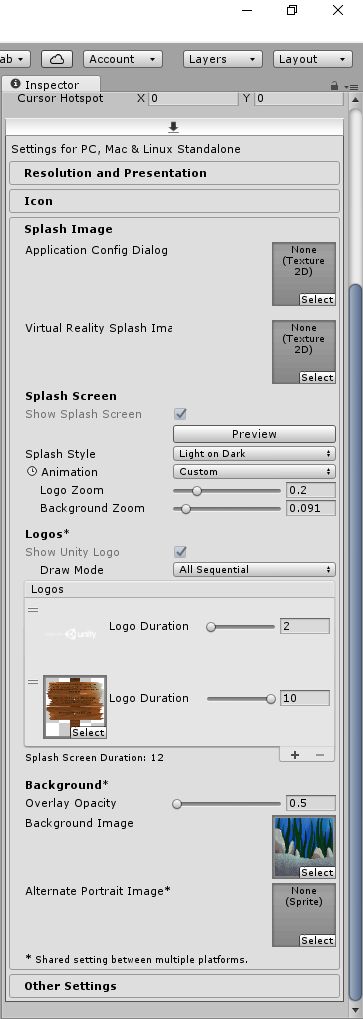
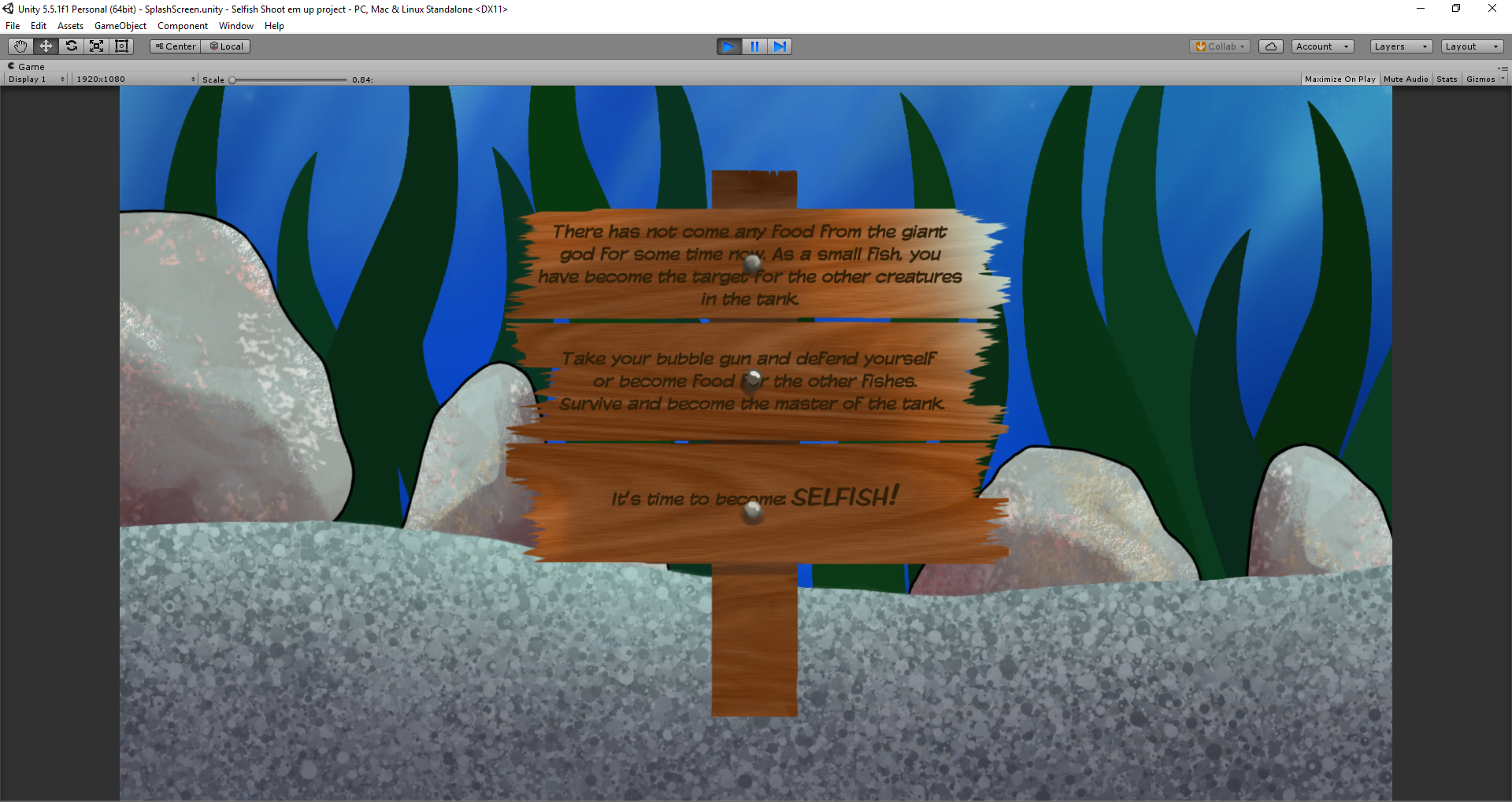
When I had made the sign I started to make the splash screen for the game. To do that I asked our programmer for help. I went into Edit>Project Settings>Player. In the inspector, I added the sign as the logo and a background I had made for the Pre-Alpha as the background image. For the player to have time to read the sign I set the time to 10 seconds. This screen will play when you build the game and play it. However, it is not skippable, which in my opinion is quite annoying. So, I thought that it could be smart to make the sign into a separate skippable scene instead.
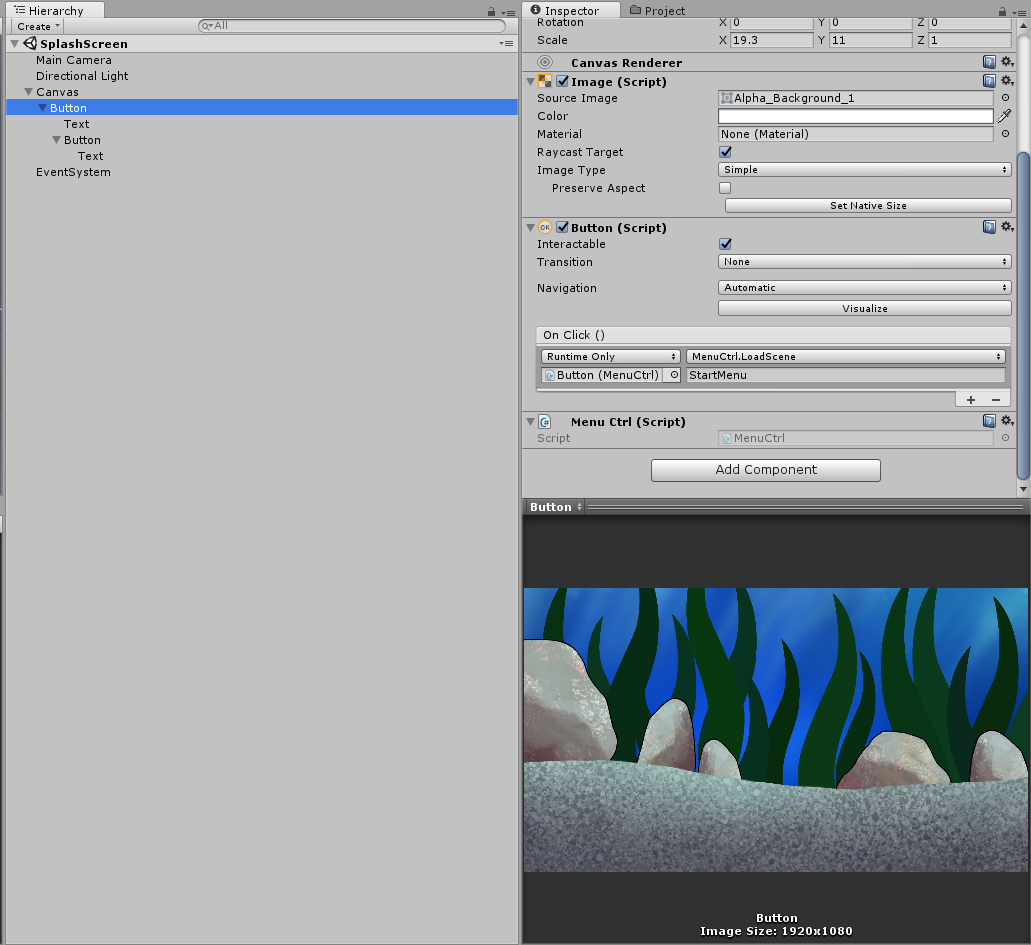
I am not very gifted in Unity, at least not yet. So, I improvised a little bit while making this scene. I wanted this scene to appear at the start of the game and when you click anywhere on the screen it would take you to the main menu. That way, you can decide yourself if you want to read the sign or not. I first made a canvas to be able to make a GUI. Then I added two buttons as children to that canvas. For the top one, I added the Pre-Alpha background as the image and for the bottom one, I added the sign. I removed the “button” text on both and resized them to fit the screen. Then, I copied a script called “Menu Ctrl” from our main menu that has clickable buttons. I believe this is the script that allows you to change scenes when clicking on buttons. After that, in the “Button (Script)” tag I made it so that a click would take you to the main menu(“StartMenu”). I did the same with the sign button, except in that tag I did not need to add a script, I suspect that is because it is the child of the top button with the script already added(I don’t really know if that’s why…). Lastly, I turned the “Transition” to “None” to get rid of any blinking when clicking on the screen. There might be an easier way to do this but it worked. So in the end, I am proud of my splash screen(not so much splash screen anymore, though).  |