Week 40: Diffuse, Specular and Normal Mapping
|
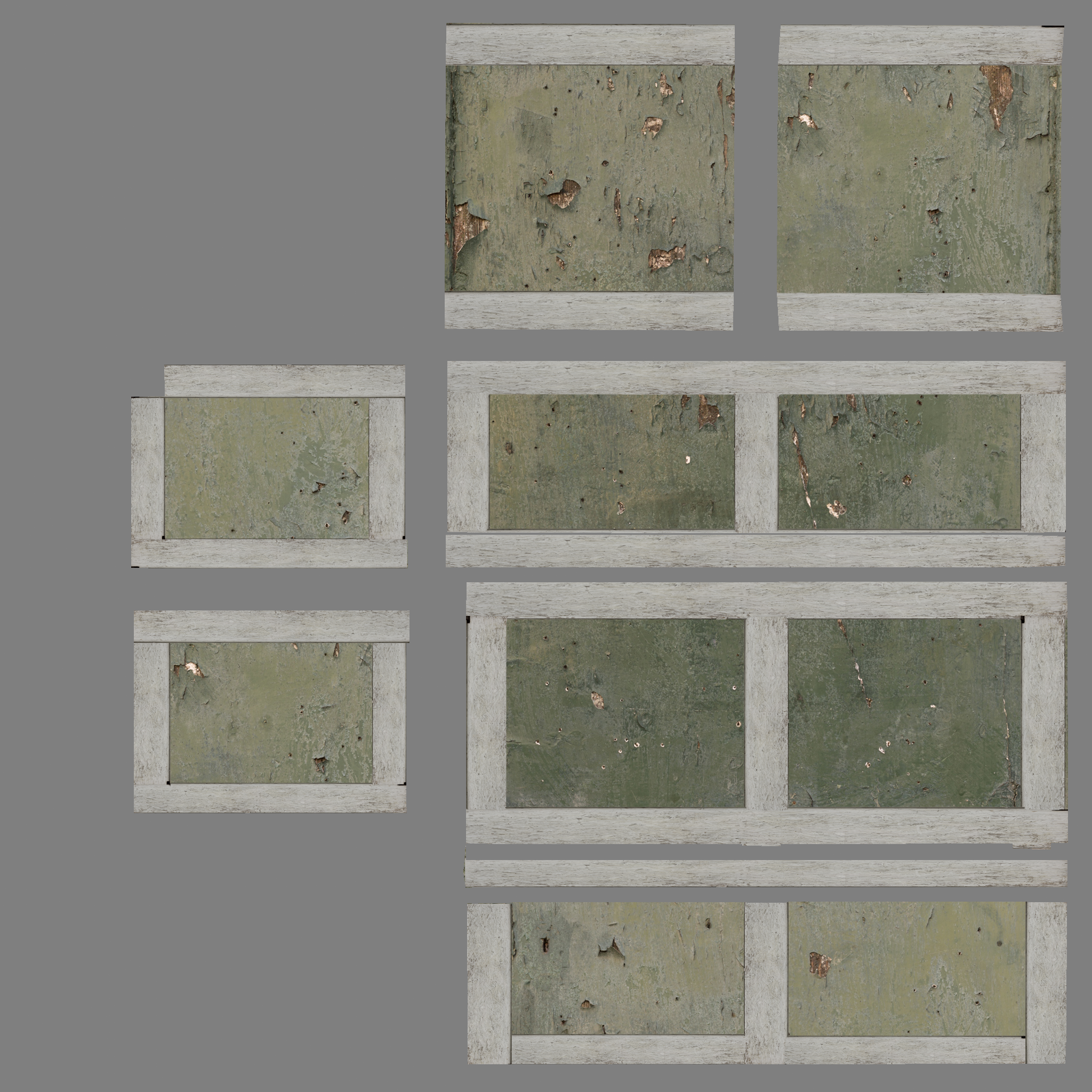
This week has been very eventful, but by no means tedious. With an optimised crate model good to go I could proceed with applying texture to it. It seemed to be a daunting endeavour at first, with so many new terms and methods to learn from scratch. I couldn’t be more wrong as my work progressed. This was accomplished by three simple steps: making a Diffuse, Specular and at last a Normal map. Diffuse
First I began with the Diffuse, which is basically how it will appear on the model with colouring (minus its Normal map). At this stage it was much like placing the foundations for your later procedures. Ensuring that the textures of the different elements are applied correctly within the faces is paramount, otherwise you will risk having different textures overlap or end where they shouldn’t. I made this mistake early on, and had to backtrack to correct my errors. It’s at this stage that you apply shadows and highlights as well to help the corners of the model stand out better. This helps the texture appearing more seamless around these areas, and hides any inconsistencies. Specular
Next is the Specular map, which is crucial for the application of the Normal map later on. At this stage it is important to create contrast between light and dark using the dodge and burn tool respectively. What you want to appear sunk into the texture you darken, whereas what you want to protrude you lighten. The rest is up to your discretion, though you should make sure that there is always a sense of detail and avoid drowning it out altogether. By using this method you make it a lot easier for yourself and the computer. You create a clear black and white visualisation that shows exactly where and how it will interact when converted to a Normal Map. It is also easier for yourself to see how you want it all to be generated before-hand without the texture’s normal colouring interfering with your perception. Normal Map
Then we come to the Normal mapping. I was really worried about this stage at first, hearing about how you’d need to do a lot of fine-tuning using Nvidia’s complementary software for Photoshop. My fear proved to be unfounded however, as it turned out I could just place the Specular map in a program called Crazy Bump which calculated the depth automatically and without any noticeable error. By working out the texture’s highlights and shadows it can apply depth to the smallest detail which in turn helps your model to become truly life-like. All that remains now is attaching these onto the model using your respective software rendering program. Final Result:
In hindsight, I’m frankly amazed that I managed to do all this in such a short period of time. But then, it really just comes down to knowing your tools and learning the process. I didn’t think it’d be this easy regardless. The combination of 3DS Max, Photoshop and Crazy Bump enabled me to complete a fairly decent crate in just a few weeks. Now I’ll just have to keep practising while my memory is still fresh. Until next time! Björn Erik Berndtsson. Graphics and Game Design. |