The Last Signal. Post #4: animations
|
This post is about including animations in our game. This topic is too difficult to go into much detail. I will therefore only briefly go through the main points of how I (almost) solved this complex area in the game. I may return to it later when I have the time for a more thorough discussion. I used the existing SFML There was not much to do here other than go through a tutorial, copy the files and implement the same algorithm that was used by the author of these classes. The algorithm looks as follows:
    sf::Texture texture;
	if (!texture.loadFromFile("player.png"))

	// set up the animations for all four directions (set spritesheet and push frames)
	Animation Down;
    Down.setSpriteSheet(texture);
	Down.addFrame(sf::IntRect(65, 97, 64, 96));
	Down.addFrame(sf::IntRect(130, 97, 64, 96));
	Down.addFrame(sf::IntRect(195, 0, 64, 96));

	Animation Left;
    //...and so on, for every required animation

    Animation* currentAnimation = &walkingAnimationDown;

	// set up AnimatedSprite
	AnimatedSprite animatedSprite(sf::seconds(0.05), true, false);

	sf::Clock frameClock;

    while (window.isOpen())
  	{
		//... other code, e.g. event handling

		sf::Time frameTime = frameClock.restart();

		// code sets current animation to correct animation, depending on, e.g. user input
		currentAnimation = &Up;

        animatedSprite.play(*currentAnimation);

		// update AnimatedSprite
		animatedSprite.update(frameTime);

		// draw
		window.clear();
		window.draw(animatedSprite);
		window.display();

        //...
So basically, the code does the following: 1. you create an
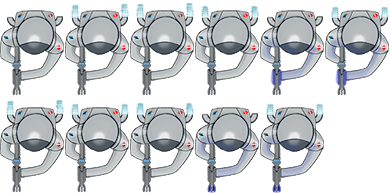
Spritesheets contain all the different frames, sequences of which make up the different animations. You obtain each individual frame by telling your development tool (e.g., Visual Studio) to clip a rectangular area from a spritesheet. This is seen in lines below line 5. In line 5, we declare a new animation, Then you create a version of the familiar Sprite object, an AnimatedSprite. You will tell it to use one selected animation and to update it when necessary (keep showing the different frames in the animation). Animation will need to be changed as the gameplay progresses, so you create a variable called The Finally, the animated sprite is drawn using the usual  |