Creating sounds
|
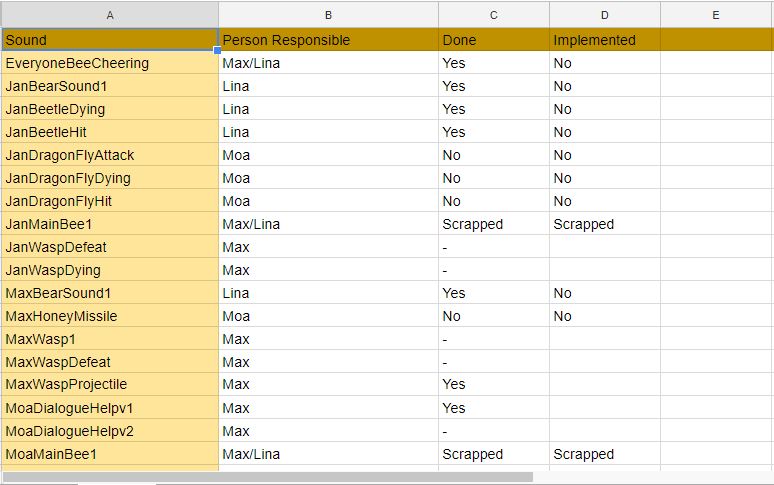
During the last week, I have been creating sounds for the game. It has been an interesting challenge for me, since I have never been editing sounds before. Moa Bruus (Lead Sound and Artist), has been very busy with numerous artifacts conserning art. Therefore, I have been helping out by editing audio files.
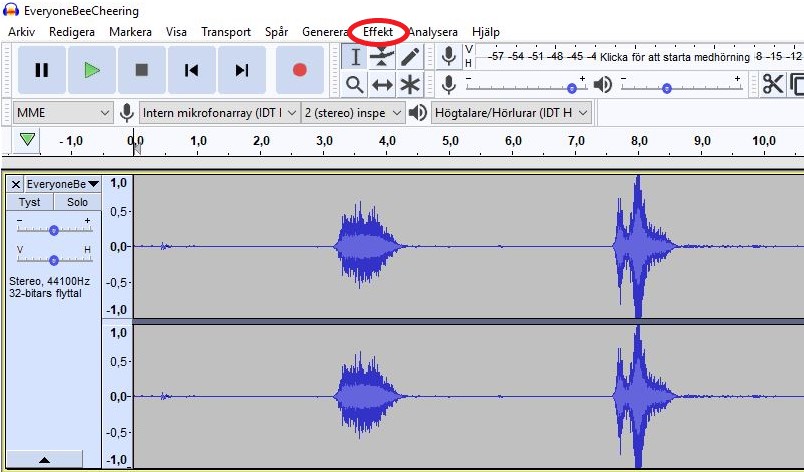
We divided the different audio files between each other, and were expected to edit them on our own. However, at first we had a discussion about the different audio files and how they should sound in order to fit the concept. How do we want the bee to sound? As well as the bear and the other characters in the game? We came to a conclusion about what we wanted, and then started to distribute similar audio files to the same person. For example, I was supposed to edit the different sounds for the bear. If a different person would have edited one of the remaining bear sounds, that person could have interpreted that sound in another way. By distributing sounds in this way, we avoided creating audio files with a distinct difference. One of the first sounds I wanted to edit was the one called “EveryoneBeeCheering”. If you listen to the unedited sound file, you’ll hear my team cheering. We created this sound, since we wanted the player to be cheered on during the game. However, the original sound did not fit the desired concept. We wanted the group of bees to sound cute, innocent and high pitched, similar to how chipmunks usually are displayed in cartoons. To make this change, I had to research for a suitable audio writing software. My group recommended me to use Audacity, since they said it is a program that doesen’t have a steep learning curve. As promised by my group, things like changing the tone or the pitch of a sound file, proved to be quite simple. Firstly, I opened the audio file I wanted to change in Audacity. To change the pitch of the audio file, I first needed to chose the file. Then I started browsing the option called “Effect”.
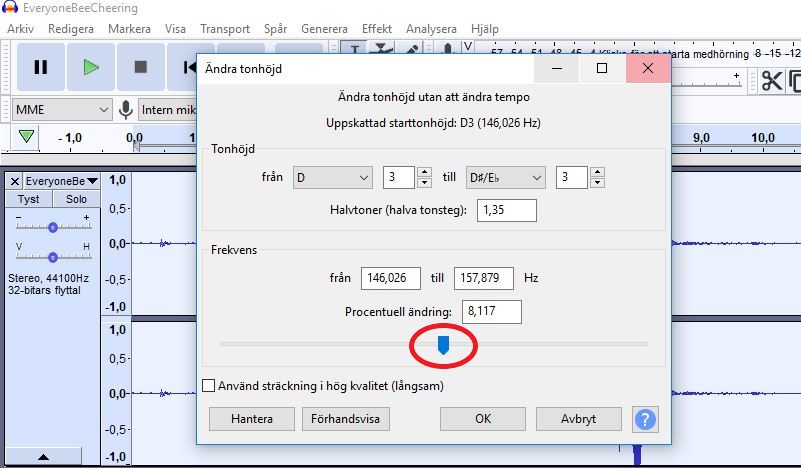
In the Effect menu, there is an effect called “Change pitch”. By clicking on that effect, a new menu pops up.
By dragging the meter (the marker is marked with a circle in the picture) up, the sound will be brighter and high pitched, and by dragging the meter down, the sound will be darker and low in pitch. Since I wanted the bee to sound like a chipmunk; very high pitched, I dragged the marker up. By playing around with the marker, I could try several different versions by clicking on “Förhandsvisa” (Preview in english). When I found the perfect choice, I clicked on “OK”, which added the the effect to the audio file. Then the audio file was done! Quite easy, wasn’t it? I have used other effects for other audio files, but the “Change pitch” option has helped me to create several audio files that will fit perfectly in our game. It will be very fun to have them implemented in the game.  |