Topic: Animations in Unity 2017.3 using the Animator component
Animation in a pre-alpha sprint, why?
Animation, while not an alpha feature per-se, was something our (Team Hastur) artists were asking for better in the engine (Unity 2017.3) Q.A. of their work as well as a confidence boost by seeing their work being implemented in the game.
Furthermore, we had to see whether the rough animation pattern we had thought out for the NPCs would tie in with our mechanics and enhance the gameplay before we spent any more resources on polishing them.
Since animation system needs to be triggered, synchronized and fine-tuned alongside the mechanics to achieve the aesthetic goals, our programming lead (Alexander Peck) decided to take it on as part of our programming product backlog. I took over this product backlog item for the current sprint, this included researching the unity animator system, implement basic animation for our 2 existing characters (player & basic enemy), and summarize the relevant resources for the other parts of our team (Design Design & Graphics).
GameObject Components – AnimaTOR vs AnimaTION
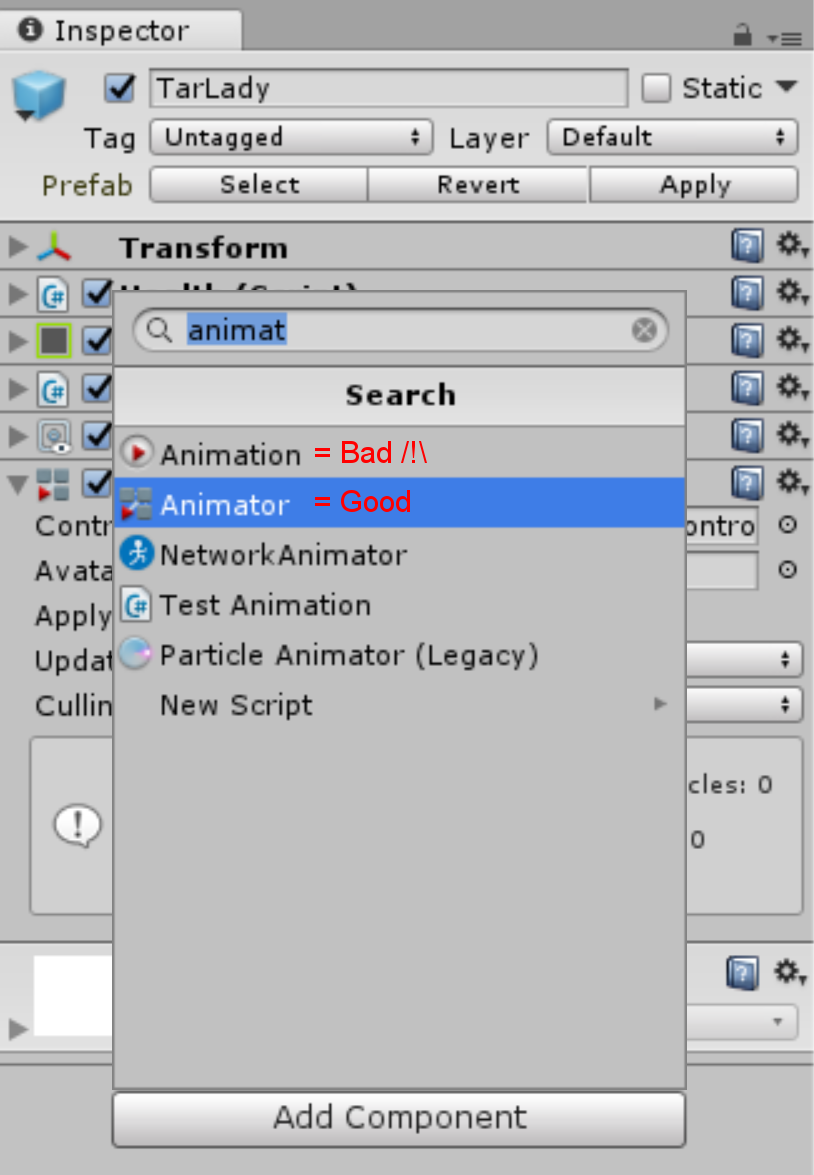 First of all, we need to acknowledge a point of possible confusion, namely the difference between the Animation and Animator components, both can be added directly to GameObjects. Unity is transitioning to the latter. First of all, we need to acknowledge a point of possible confusion, namely the difference between the Animation and Animator components, both can be added directly to GameObjects. Unity is transitioning to the latter.
The original Animation component is being fazed out and therefore should not be implemented ON GameObjects directly – at the time of writing, it still is a supported legacy GameObject component.
To add further confusion, the Animation component is still necessary in other parts of unity, but more on this later.
In short: The Animator is a much more powerful component that takes an animation controller which controls the Animations, and displays a temporary sprite in the scene view to adjust positioning of the object.
From a production point of view, the main advantages of this system are:
- A de-cluttered GameObject tree and simplified component hierarchy;
- Relinquishing the actual animation of a character to a full-fledged animation system that can be tweaked outside of the regular scene view.
The problem, rampant for all legacy components, is the lack of up-to-date documentation; or rather, the lack of well indexed updated documentation on search engines. This is especially cumbersome because the Animator, despite all of its benefits, does come with a few counter intuitive implementations & uses.
This resulted in the background research taking almost twice as long as originally planned.
How to use the Animator components
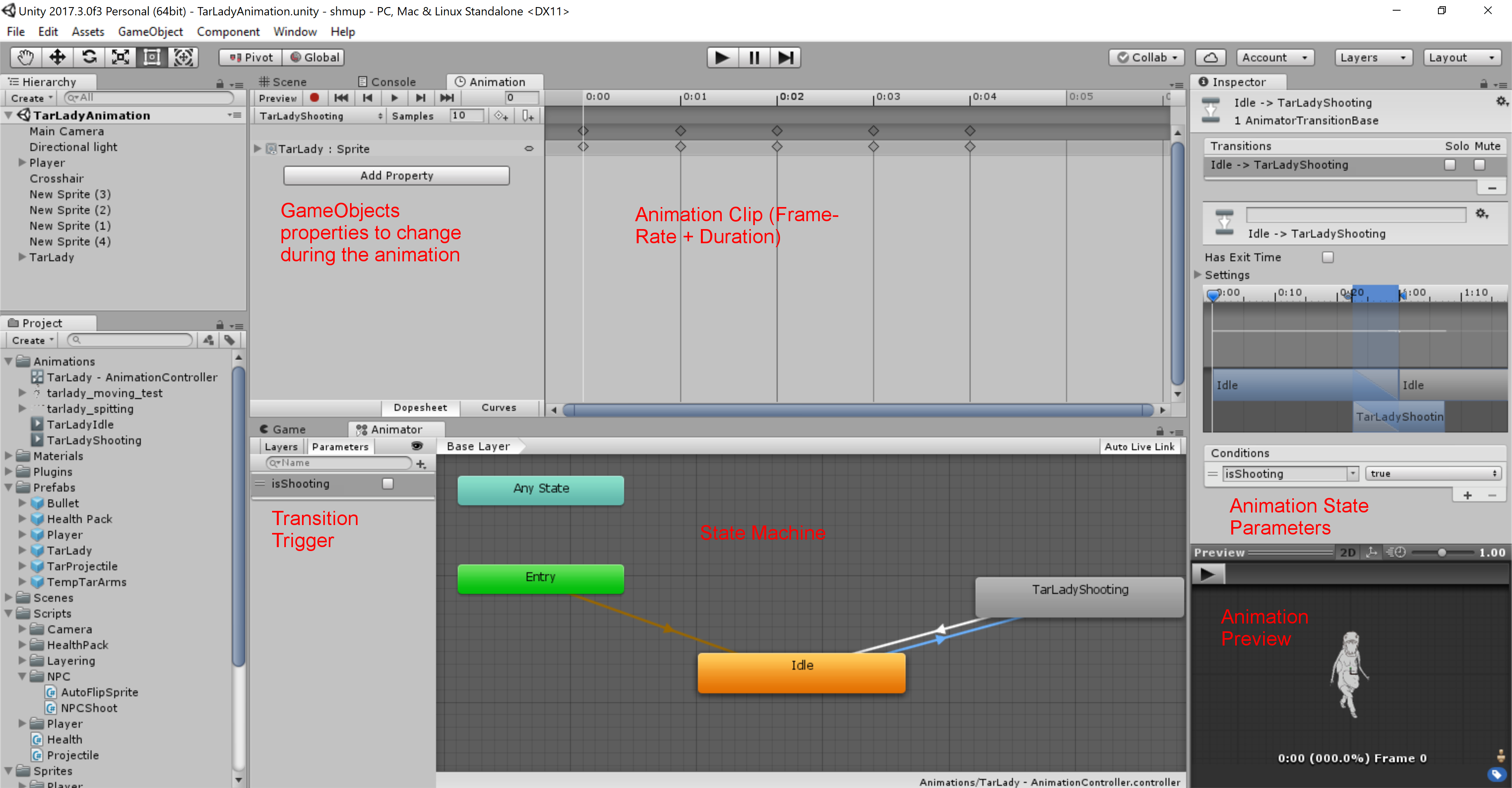
The Animator is connected to an animation controller, which is a simple state machine. The animation controller’s states all have an Animation component that will be containing the actual animation/s – it can handle both simple sprite-sheet animations, as well as bone based animations.
What are the advantages of linking Animator and Scripts?
From a programmer’s perspective, the main benefit of this new animation method is the animation controller’s transitions. These can be initiated based on a time loop, ints, floats, triggers or a combination of it.
The transition conditions can be set in the animation and manipulated from a script or vice-versa using AnimationEvents. This means that for example an enemy attack can be animated and coded separately as long as the variables in the transitions and behavior scripts are agree on beforehand.
From a designer’s point of view, the core advantage is the decoupling of code and game balancing. The setup of the Animtor allows a game designer to fine-tune the gameplay and balance the various mechanics by going directly into the animation lengths, add/remove event triggers where needed and manipulate the transitions between various animation/action stages without ever having to touch the code running it.
How does this help create the Enemy Shooting Behavior – Script Animator
- Script: bool PlayerInRange
- if the player is in range, activate attack wind-up animation
- if not, wait.
- Animation Idle Transition:
- if the wind-up animation is activated, transition to the wind-up state and play wind-up animation
- otherwise keep playing the idle animation
- Animation Wind-Up:
- when the wind-up animation is finished, the AnimationEvent turns the boolean “isShooting” in the script to true and then transitions back to the Idle Animation.
- Script: bool isShooting
- if both conditions PlayerInRange and isShooting are fulfilled, it spawns a projectile and shoots towards the player. Once the projectile is shot, it resets and runs the behavior loop from the top.
TL;DR:
Using the Animator instead of the Animation component for GameObjects simplifies the behavior adjustments required later during the balancing stage of game production by enabling us to intertwine the character’s animations (length, frame-rate, transitions) and behavior (when & what actions to take).
The Good: Powerful tool
The Bad: Very complex
The Ugly: Sometimes Counter-intuitive
Animator – Who needs to know about it?
Gameplay designers, programmers and artists are all people on your team who should get a basic understanding of its general functionalities while focusing more in-depth on the Animator’s attributes relevant to their respective discipline.
About Timothée Engel
2017 Programming
|
