Controlling audio mixers through code in Unity
|
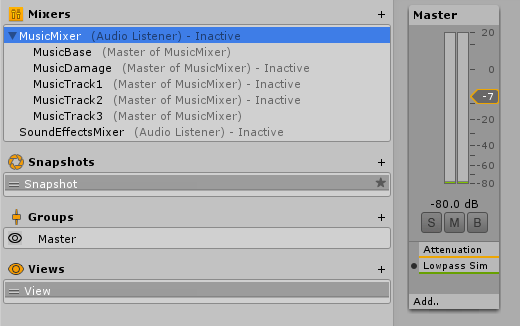
If you create custom audio mixers in Unity, you gain more control over the sound in your game. Just remember to assign your “AudioSource” components to the correct mixer. I wrote a bit about AudioSources in a previous post. Several child mixers can be routed through a parent mixer. For example, I have created separate mixers for Music and Sound Effects in our game.
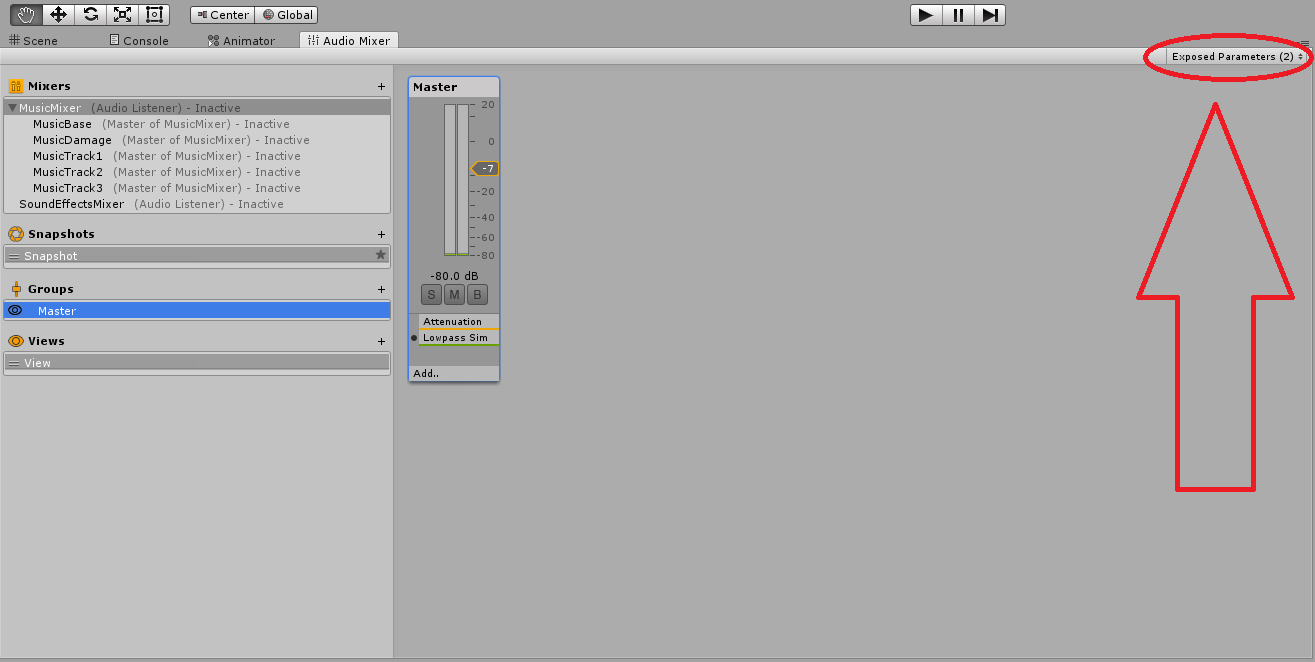
The MusicMixer is the parent of several child mixers with different music tracks playing through them. This way I can adjust the overall volume for the music, and the individual volume for each track. I use this in our game to cross fade between three different soundtracks. I wrote about them in an earlier post. I’m honestly not sure if it’s a good or bad idea to divide the sound into mixers like I have done here, or if there are smarter solutions. But in the end I got the result I wanted so at least this method works just fine. Unity is by default hiding most of the settings for audio mixers when coding. I actually don’t know why, but I learned how to “Expose” parameters such as Volume, etc. to be able to control them via code. In the picture above, I have my “MusicMixer” mixer selected. When I select the “Master” in its list of “Groups”, the inspector shows the available properties: 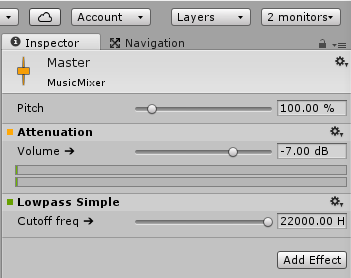 “Volume” has an arrow next to it. That’s because this property has been “Exposed”. To do this, simply right click on the property name, and click “Expose to script”. You will now be able to see it in a separate list of exposed parameters:
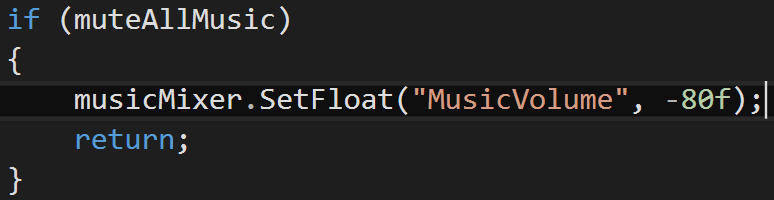
You must rename these parameter (right click) to be able to find them later in your code! To be able to work with audio mixers in code, you need to include: Audio mixers are saved as assets, and can be edited in code just like any other GameObject. I don’t know how to find audio mixers through code, (with for example a Find() function) so I assign them through the inspector, like this: Here’s and example of something that I do in code to mute ALL the music mixers (to prevent driving myself insane by my own music during play testing): The string parameter in SetFloat is the name that you have given the exposed parameter in the audio mixer. The float is the value you want to set it to. The reason why I pass in -80 (instead of 0) to mute, is because 0 is actually the default value: The original volume of the audio +0.  |