I believe an introduction is in order…
|
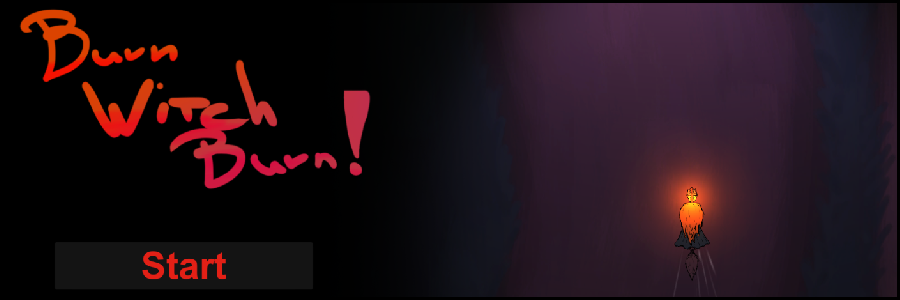
Intro Hello again! This post is probably going to be long, and will mostly focus on assembling stuff in unity and coding, although there is some graphics stuff and animating sprinkled in. This week I’ve been working on the player’s introduction to the game, starting from redesigning the main menu, making the tutorial, and then transitioning into normal gameplay. For a while now, I’ve been wanting to have a small tutorial for the game that tells the player that they can use the right mouse button to teleport, move with the w,a,s,d keys, and hold down the left mouse button to shoot. I wanted the tutorial because none of these controls are actually shown on screen at any time (unlike the spell hotkeys) and I didn’t want the player to need to go into the controls menu, because most players won’t. In addition to wanting a tutorial in our game, I also wanted everything from the moment the player launches the game to be seamless with smooth transitions, so the player doesn’t feel like they’re in a menu. I also wanted to introduce the player to the mob, instead of them just being there when the player starts the level, to give them more impact and to make the players notice them more instead of taking them for granted because they were already there when the player started the level. Planning Before starting work on anything, I planned out what I would need to make and how each element will flow into the other: Part 1- The player launches the game and gets to the main menu where the player can see Gillis flying on her broom at the right side of the screen, with the menus being on the left. Part 2- When the player presses the start button the camera would pan to the right where Gillis is and seamlessly transition into a tutorial bit with no enemies spawning. The player will then receive instructions on how to move, teleport, and shoot. Part 3- After successfully completing what the tutorial tells the player to do, a dog enemy will appear from the bottom of the screen and test the player. Once the player kills the dog they will see a speech bubble that says “There she is, get her!” which will then be followed by the mob appearing and the game will start. The Main Menu After planning out what I would need to do, I started working on the main menu. I made a new scene out of a copy of the basic level we had made, I removed all the unnecessary game objects, moved the camera to the left, and put the old menus I had previously made inside this scene, I also replaced the player with a sprite, so they couldn’t move. After all this I animated the camera to return to origin when the start button was pressed and then transition into the next scene. In-game: 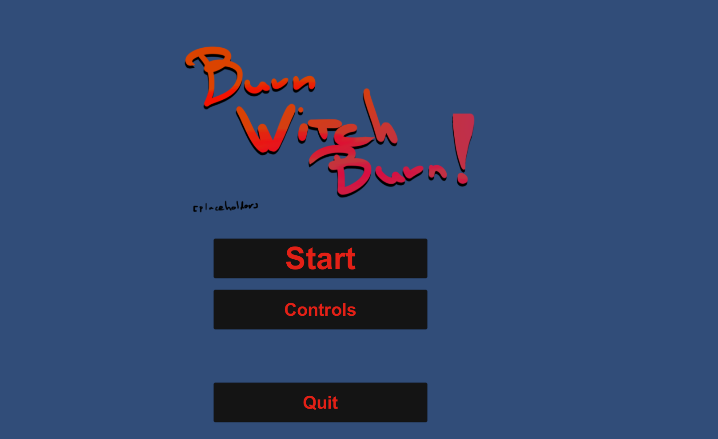 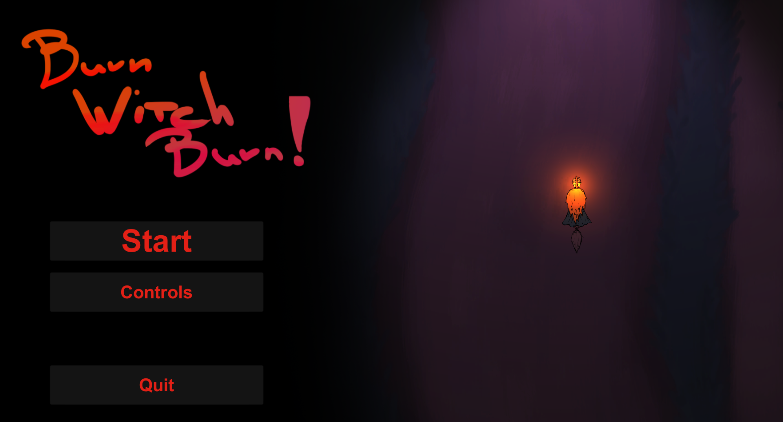
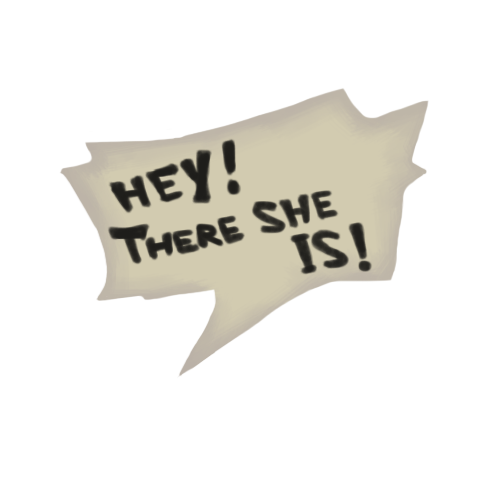
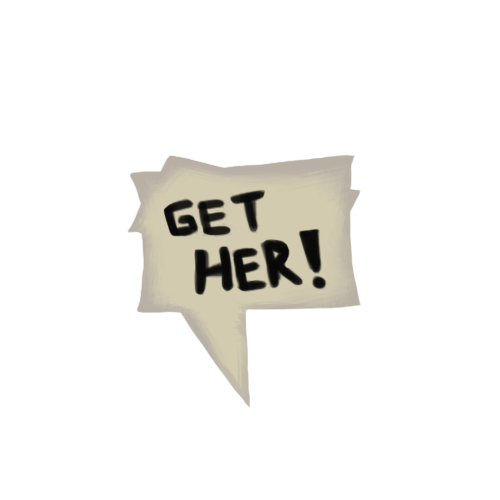
Transition into gameplay Although the tutorial was supposed to be the second part in the chain, I didn’t actually make it after the menu. After I had the menu done I started working on transitioning from the menu to gameplay, as I could always just add the tutorial in between them and the transition would still work. The first thing I needed to make sure of for the transition to be seamless is that only the player and the background were visible, just like on the main menu. I removed all the trees and enemies from the gameplay scene, as they would be randomly spawned later anyway, and I added an animation for the mob that plays when the scene starts. I also created speech bubbles for them to create anticipation and explain why the mob just showed up now (they only recently found the player). For the speech bubbles I used the question mark asset I made last week for reference and just used the same colours and shading technique to get them to look identical.
After making the art assets for the speech bubbles I made them into game objects in unity and placed them in the gameplay scene. I added an animator and animated them appearing one after the other and fading, and added a script to them that destroys them after roughly 4 seconds which is that time that it took for them to complete the animation. I timed it so the mob animation would have them enter the player screen from below roughly a second or two after the speech bubble animations completed. The Tutorial The last part I made in the chain was the tutorial. I started by copying the gameplay scene and I needed to make sure it started and ended identically to both the end of the main menu scene and the start of the gameplay scene, meaning nothing but the player and the background needed to be visible on the scene. To make the transition from the main menu seamless I needed to have the player’s HUD (lives and mana bar) fade in, as they weren’t present on the menu screen. I simply did this by grouping all the HUD related elements under a single object, and adding a Canvas Group component which let me set the opacity of all the UI elements under it via animation in unity. After this, I made three game objects with the tutorial instructions needed for the tutorial, and created a tutorial controller script on the game controller object. The script works in a very simple way: First it enables the first tutorial game object by default on scene load, which means it’s displayed when the tutorial starts. After this the script checks for the appropriate player input, in this case, any sort of movement on the horizontal or vertical axis. If the player moves it means they understood the tutorial tip so the script deactivateds the first tip and loads the second one, while also flagging the first tutorial tip as “learned” via a boolean, to keep it from activating again. After the second tip has been activated the script does the same way, this time checking for the player to release the teleport button, meaning they teleported. The script only checks for this behaviour if the first tip has been marked as learned, to avoid situations where the player could teleport before moving, skipping the first tutorial text. After successfully teleporting it flags the teleport as learned and does the exact same routine, only with firing. After the player fires the script deactivates the tutorial messages and spawns a dog. After the dog is dead the script saves the player’s position in a static variable (meaning it doesn’t change between levels) and transitions to the gameplay scene and places the player in his old position, making the transition completely seamless. 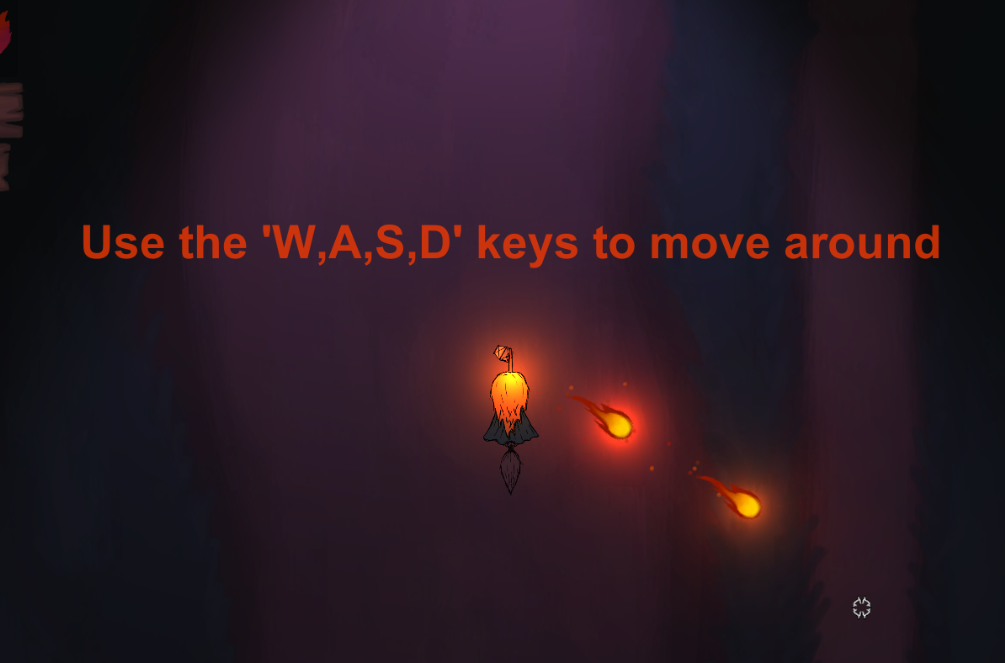 I planned to replace the tutorial messages with proper art but I haven’t gotten to that yet. This was a really long post, hopefully it wasn’t toooooo boring :< Bie Bai!  |