POTATO PIRATES OF THE PROHIBITION – INSTALLER
|
Hello dear readers, this week I have been mostly just doing some final touch in for the final, the different things I have been doing is all from just fixing some small bugs, to adding some minor features (for example adding a click sound to the buttons). However the biggest things I have probably worked on this week is to create an actually installer for the game, so this week I will mostly be focusing on how I created the installer, and made it work the way it works. I will also be including a download link to our game at the end if you are interesting it testing the game for yourself, seeing as it is now complete! The InstallerWhen deciding how we wanted to distribute our game we were first thinking about just sending all files in a big map, however seeing as an installer is a more friendly way to introduce the game to players, we went for it. Seeing as VS2015 community doesn’t contain a default way to make an installer at the beginning I had to install an extension to get access to it. I first tried using InstallShield, wish is a powerful tool; however as I only got to use a free trial version and I couldn’t get it to work like I wanted to I chose to instead going for visual studios own version. (wish can be found at https://visualstudiogallery.msdn.microsoft.com/f1cc3f3e-c300-40a7-8797-c509fb8933b9). Using it was quite simple, and I quite fast had a working installer. However when first trying to run it I just got a “titilebar” and the game didn’t seem to launch from the installer version. I first though I missed to include something, however after some time I found out it was because the map it default got installed to (“C:Program FilesTeam 18Potato Pirates”) was a protected map. This caused the game to not being able to lunch correctly, if you launched the game however as an Administrator it worked. Seeing as the most people don’t really like to run game as an administrator I chose to simple change the default installation folder to “C:Team18Potato Pirates”. This solved the problem seeing as our newly created folder wasn’t a protected folder.
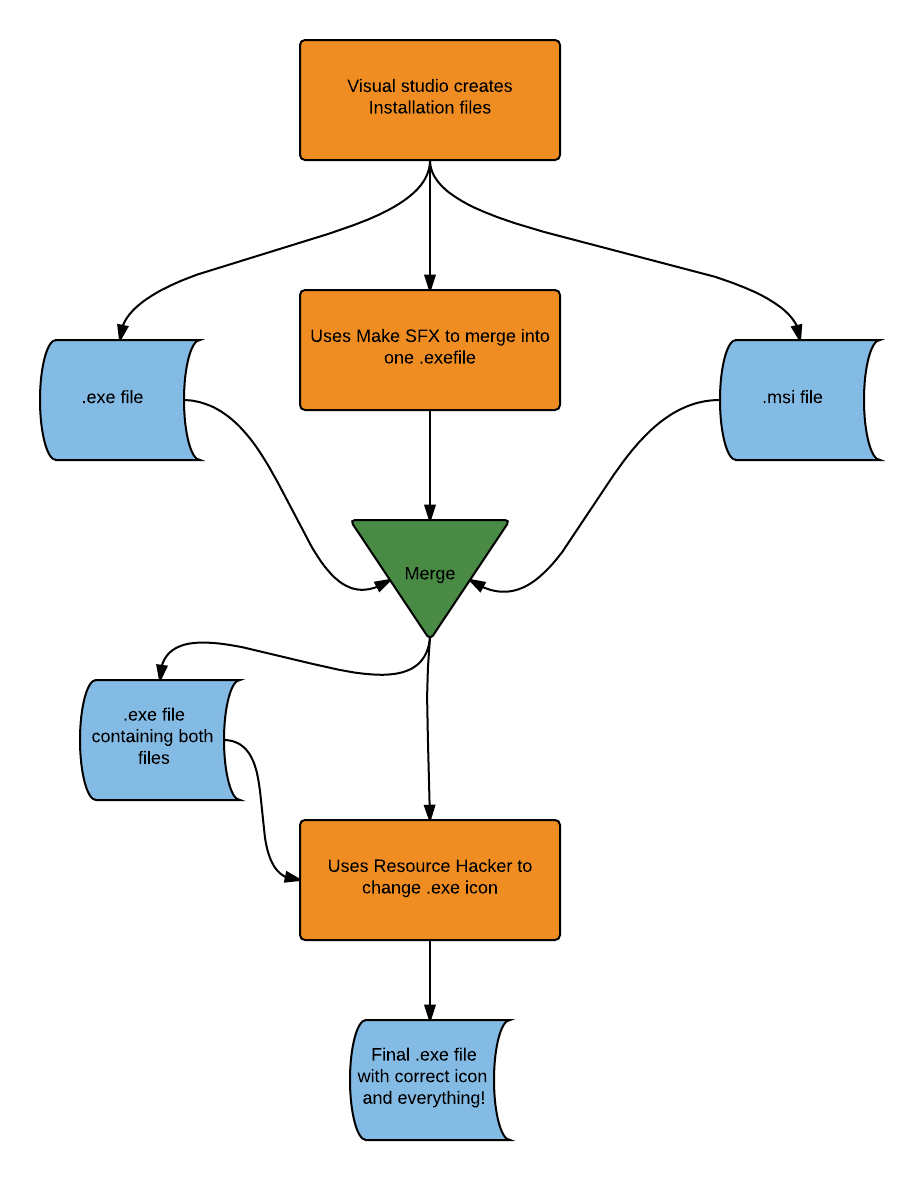
After getting it to work I simple wanted to change the installer execution, as it was currently two files, one .msi and one .exe file. I simple wanted to change this to one exe file to make it easier for the user. I fixed this by using a SFX Compiler. (Make SFX 5.5). This way it took the two files and made it into one .exe file, however after this the icon of the installer got changed to a “default installer icon”. I wanted to keep it with the potato icon we had created earlier, so I used a Resource Hacker to change the .exe files icon. In the picture below you can see a flowchart of how I went by creating our single .exe installer file.
(click here for bigger version) When everything was finished I send it to some people to see that it worked, however I then found out I had forgotten one of the .dll files, so I simple had to recreate all the steps but this time adding it. After fixing this it worked as planned, I then simple putted it into a zip file and added some other necessary information, like a readme file and an extra installer if people had problem with running C++ application.
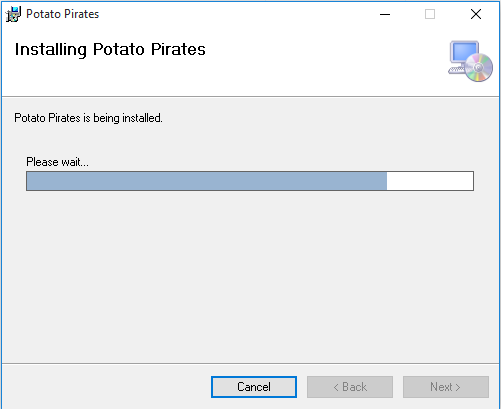
(click here for bigger version) Above you can see a picture of how the installer looks like when installing the game. it’s quite simple. Well, that’s all for me, if you are interested in testing our game you can get the installer at this link. Thanks for reading and be sure to leave a comment!  |