Game Development – Nr.2 | Magic Writer
|
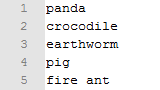
Loading items This week i have worked on loading the throwable items into the game. Loading their sprite and correlating it with a property. Instantiating all the items in the beginning, deleting them when the application closes and reusing them in runtime. We have a spritesheet for each property, we have a item_alive_spritesheet and a item_dead_spritesheet and so on for each property. Together with each spritesheet there is a .txt file that is connected with its sheet. So item_alive_spriteshee.png has an item_alive_names.txt. This .txt file contains the names of each item. The first name in the .txt file is connected with the first item in the spritesheet. This is the alive spritesheet: . The .txt file for this sheet would look like this:
Over to the code part… I created a class called ItemManager. The ItemManagers job is to load the spritesheets and .txt files and create an instance of the Item class for each item. Each has the same size in the spritesheet so we can access them easily. The first step is to loop through the .txt file and for each row in the file we create an instance of a new Item and give the instance the item_spritesheet, a item_sourceRectangle and an item_name I also check if the text on the current row in the .txt file is equal to ”-” it means that the spritesheet jumps down a row. This is a code example of how the above method works:
while (!stream.eof())
{
    //Read item name from textfile
    std::string itemName;
    std::getline(stream, itemName);

    if (itemName == "-")
    {
       //Change the sourceRectangles position one step down
       sourceRectangle.left = 0;
       sourceRectangle.top += itemSize;
       row++;
    }
    else
    {
       //Create a new item with spritesheet, sourceRectangle and name
       Item* item = new Item(itemSpriteSheet, sourceRectangle, property, itemName);
       m_items.push_back(item);

       //Change the sourceRectangles position one step to the right
       sourceRectangle.left += itemSize;
    }
}
As you can see there is a vector called m_items that holds all the instantiated items. This method happens for each spritesheet and .txt file in the beginning of the game. Now how do we access these items? I created a method called GetItem which returns an Item*. This method randomizes an index between zero and the size of m_items vector. We access the item at the index and check if the item is currently in the game or not by checking a boolean called ”inGame” inside each item. If it is not inside the game we return the item and set the property inGame to true. When the item is later returned to the vector its property inGame is set to false again. This is how the GetItem() method looks like:
Item* ItemManager::GetItem()
{
    //Start an infinite loop.
    while (true)
    {
       //Randomize a index between 0 and the total item count.
       int randomIndex = rand() % m_items.size();

       //Access the item at randomized index.
       Item* item = m_items[randomIndex];

       //Check if the item is not active and is not inside the game.
       if (!item->IsActive() && !item->IsInGame())
       {
          //Return the item and set in game to true.
          item->SetInGame(true);
          return item;
       }
    }
}
 |