Mechropolis: Alpha; features and bug fixes!
|
This week has been a particularly stressful but also productive week. Friday was alpha day so we had to work extra hard to have something presentable. Many bugs were encountered and we ultimately had to spend our entire night staying up and working. All-in-all I believe I stayed up for ~32 consecutive hours. Bad planning on my part. As we approached a hard feature-complete date we had to make some adjustments to our workflow. First, we prioritized content in favor of stability. We needed to have a prototype that was just stable enough to be able to complete the first level, and postpone fixing of bugs which may hinder completion (but not completely ruin it). (This post is quite long and covers vastly different topics in correlation with this week’s progress.) Controlling a robotEven though I say much had to do with content and feature development this week in reality I spent most of the time fixing crucial bugs and tweaking settings. I initially did a great deal of work on the ability to control a robot. The controlling of a robot was initially a somewhat complex process and problems arose related to collision, amongst other things. I did manage to solve it though and I am very satisfied with the results. The controlling mechanic is still in a non-complete state and didn’t make it to the alpha though. The following code is what ultimately led to a working control behavior. private void PossessRobot()
{
/** Disable robot collision */
m_robot.DisableCollisionWithChildren();
/* Start ControlRobot activity
* Also activates the corresponding states
* States and the ControlRobot event should basically:
* Controller:
* − Disable gravity
* Camera:
* − Change position offset
* − Change FoV
* Input:
* − Disable standard input actions
* − Enable robot actions
* Crosshair:
* − Disable crosshairs for other interactables
*
* (− 2014−05−01)
*/
m_Player.ControlRobot.Start();
/** Set controller state not applicable by UFPS Presets (e.g. change controller collision radius) */
m_Controller.SetCharacterControllerState(m_Controller.controllerPresetControlRobot);
/** Disable hand camera */
m_Camera.handCameraTransform.gameObject.SetActive(false);
/** Set possessed state */
m_possessed = true;
m_justPossessed = true;
}
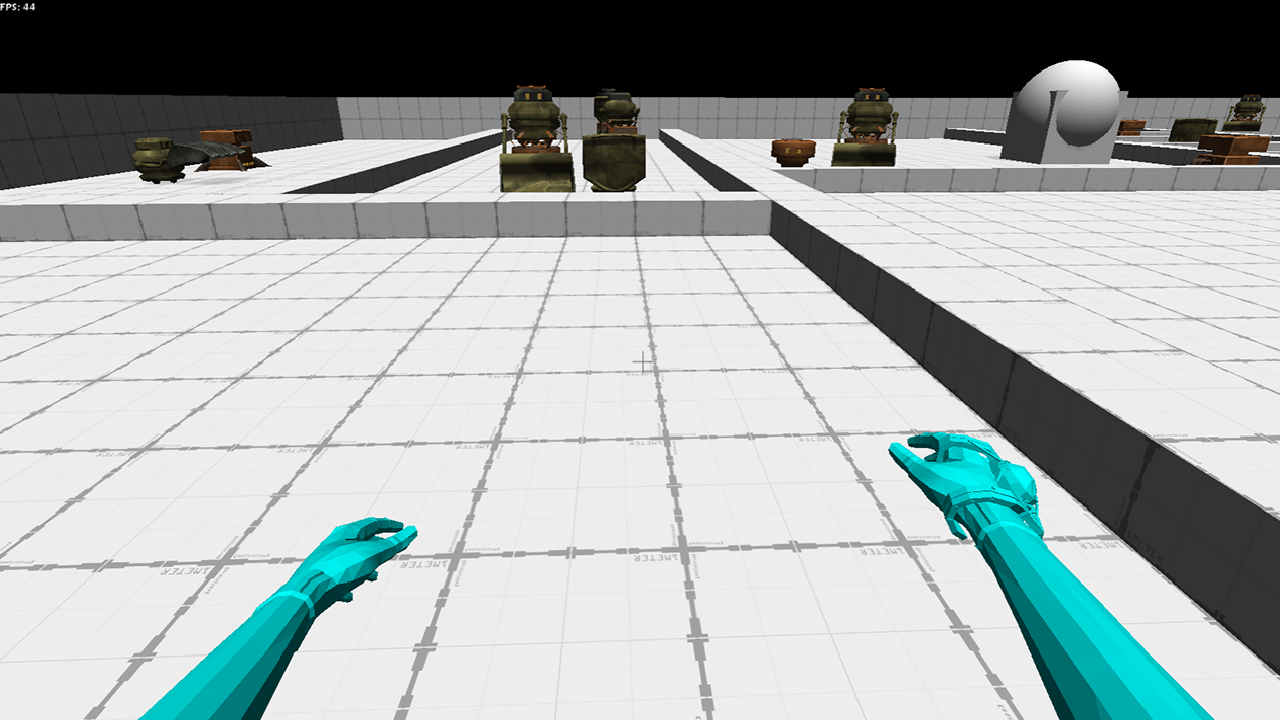
CrosshairsAnother feature I had the pleasure to work on was the crosshair(s). How the crosshairs are displayed is largely undefined and so much of it is just provisional.
Color debugging and build codeDuring the last few hours of the crunch before alpha we met with some vicious build bugs. There are some specific behaviors to consider when moving from playing in the editor to playing in a standalone executable. During the build many assets that are deemed unneccessary and editor-specific are stripped, which may result in weird glitches. One we had was that majority of the geometry was invisible. At first we suspected it had to do with occlusion culling but even after that was disabled the bug persisted. In the end if had to do with corrupted ProBuilder objects which a simple button press fixed. A harder glitch to debug was that the arms did not behave as expected (such as movement being disabled). As another bug I couldn’t get a debugging build to properly debug (attaching the profiler and showing the debug console) so I had to use a more unconventional approach. The arms are attached to a pivot with a special spring object that reacts to external forces and moves the arms in a fluid manner. I suspected that the creation of the spring failed and that caused it to not behave properly. What I did to check the exact line of code of failure was that I fetched the SkinnedMeshRenderer (the component showing the mesh and material) and set up several points in the code that changed the overall diffuse color of the mesh. When a point failed it would show by the color, and the colors of the editor and the build should in theory differ as the editor works but the build doesn’t. The following code is an extract which covers this debug change. SkinnedMeshRenderer smr = m_WeaponModel.GetComponentInChildren This code is based (copy-pasted) from the UFPS weapon code in order to be handled by the UFPS system so that procedural animation and other features are performed. Output from this code could look like this: Results during the build showed that any step after “Setup weapon pivot object” (line 26 above) failed. After a quick overview I concluded that the culprit most likely was the shader find (line 35 above) Material material = new Material(Shader.Find("Transparent/Diffuse"));
. After searching up on Shader.Find on Unity’s documentation I confirmed that I was right.
(source: http://docs.unity3d.com/Documentation/ScriptReference/Shader.Find.html) The specified shader above ( "Transparent/Diffuse" ) is never used elsewhere in the project, and is not included in the resources folder, which results in it returning null and consecutively making the next line fail. A weapon pivot object is something that isn’t even needed for this project (it’s an UFPS feature) so commenting out that particular section was enough to fix the problem. Float precision errorsFloats are tricky, from a technical perspective. If a float value is too low it is often “rounded” (decimals are dropped, effectively a floor effect). Generally though, floats rarely need that kind of precision work, but in this particularly case a programmer member of our team didn’t particularly consider the impact it could have, as we realized during our endeavors. The problem was that a certain event didn’t trigger because it relied on having a pretty much exact aligned between two objects. The alignment is handled by a Mathf.SmoothDampAngle() coroutine which snaps to the angle once a call to Mathf.Approximately() succeeded. Mathf.Approximately() checks whether two float are within proximity of each other. It is assumed to use the Mathf.Epsilon value which is the smallest possible float value as a base for its checks (documentation doesn’t mention what it really does). The code (or at least my older revision, with the bug still prevalent) looks like this: actualRotationDelta = Mathf.SmoothDampAngle(m_rotatedDegrees, targetRotation, ref rotationDelta, angleSnappingSmoothTime, maxRotationDelta, GlobalSingleton.deltaTime) − m_rotatedDegrees;
m_transform.Rotate(rotationAxis, actualRotationDelta);
IncreaseRotationCount(actualRotationDelta);
if (Mathf.Approximately(m_rotatedDegrees, targetRotation))
{
break;
}
else
{
yield return null;
}
All-in-all this looks good. The Mathf.Approximately() call should handle any float precision errors right? Well, yes, technically, but not if the problem lies outside this. This code worked fine in the editor but failed during the standalone build. The reason? Framerate. During editor sessions we average perhaps 60-90 FPS. During a build 300 FPS is not unlikely, but with higher framerate, delta time also goes down. In theory a too high of a framerate would result in a delta time unmeasurable by conventional data types, rounding to zero and effectively disabling any time-dependant actions. Where it fails here is the Mathf.SmoothDampAngle() call. actualRotationDelta returned too small of value, resulting in zero, consecutively resulting in no additional rotation being applied. The Mathf.Approximately call never even got a chance as target rotation and actual rotation were off by more than the epsilon value. The problem is easy to fix though once recognized; just manually check for a too-low of a value and snap accordingly. Just a consideration to take in when dealing with minuscule float values and perhaps save several hours of headaches.  |